
Whiteboard Animation Software Comparison Chart: Find Your Best Fit
August 6, 2026
Electronic Software Distribution: A Complete Guide to Digital Software Delivery
August 6, 2026
If you work with stage lighting or DJ setups, you have probably heard about the ADJ myDMX 3 software download and wondered where to get it safely and how to use it properly. This software is one of the most popular free lighting control tools made by American DJ, and it allows users to control DMX fixtures directly from a computer.
In this guide, we will walk through everything from downloading the software to programming your first light show, explained in simple and easy wording so anyone can follow along without confusion.
Introduction to ADJ myDMX 3.0
ADJ myDMX 3.0 is a free lighting control software developed by American DJ, designed to help users control DMX-based lighting fixtures through a computer interface. It is widely used by DJs, small event organizers, and hobbyists who want professional lighting control without spending money on expensive hardware controllers.
What is myDMX 3.0?
MyDMX 3.0 is a computer-based software that connects to your lighting fixtures through a USB-to-DMX interface. Instead of using a physical lighting console with buttons and faders, you get a virtual control panel right on your screen. This makes it easier to build scenes, chases, and effects without needing bulky equipment.
Overview of American DJ as a Brand
American DJ, commonly known as ADJ, is a well-known manufacturer in the entertainment lighting industry. The company produces a wide range of moving heads, par lights, effect lights, and fog machines. Their software products, including myDMX, are built to work seamlessly with their own hardware lineup, making setup simple for beginners.
Purpose and Use Cases
This software is commonly used in small clubs, home studios, mobile DJ setups, weddings, and school events. People who cannot afford a large lighting console still get professional-level control through their laptop. It suits both live performance control and pre-programmed automated shows.
Key Features at a Glance
The software offers a fixture library, a 3D visualizer, scene programming, chase building, and MIDI triggering. These features combine to give users a complete lighting design environment without needing separate tools for each task.
System Requirements
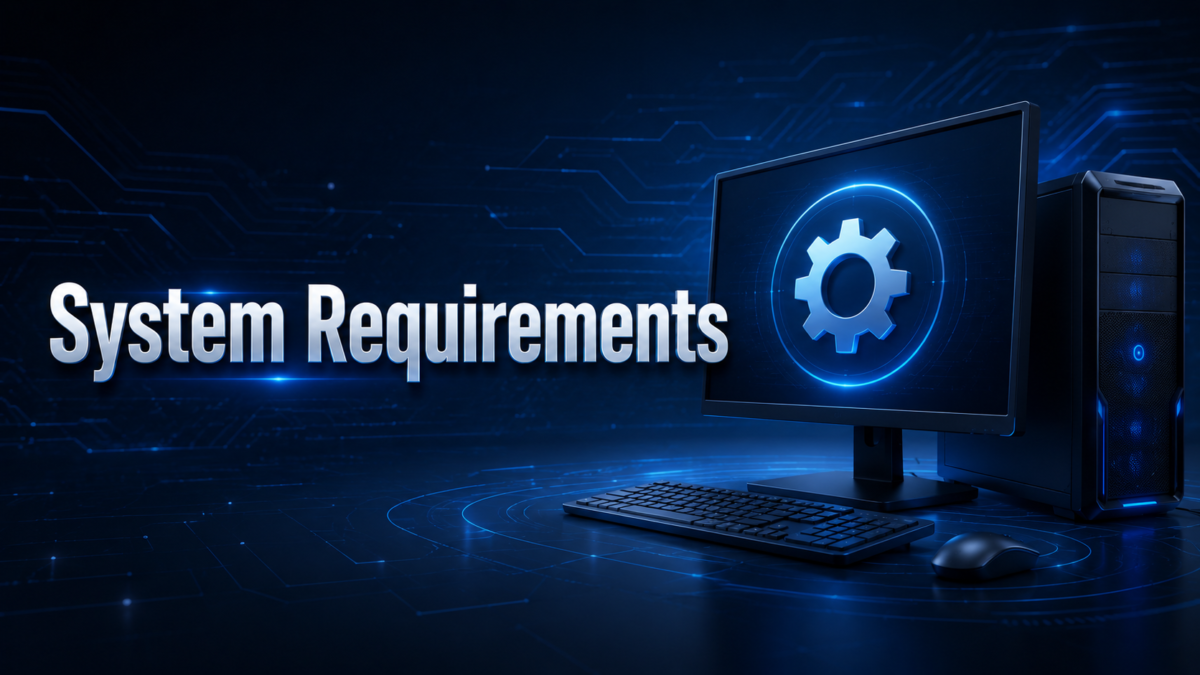
Before starting the ADJ myDMX 3 software download, it is important to check whether your computer meets the required specifications. Running the software on an unsupported system can lead to lag, crashes, or connectivity issues with your DMX interface.
Supported Operating Systems
MyDMX 3.0 is compatible with most modern Windows versions and select Mac operating systems. It is recommended to check the official ADJ website for the exact supported OS versions since compatibility can change with software updates.
Minimum Hardware Requirements
Your computer should have a reasonably modern processor, sufficient RAM, and free storage space to install and run the program smoothly. Older machines with very limited memory may experience slow performance, especially when running the 3D visualizer.
USB Interface and DMX Controller Compatibility
To actually control lights, you need a compatible USB-to-DMX interface, which ADJ sells separately or bundles with certain products. Without this interface, the software can only be used in demo or offline programming mode.
Recommended Specs for Smooth Performance
For the best experience, especially when using the 3D visualizer and multiple fixtures at once, a computer with a dedicated graphics card and at least 8GB RAM is recommended. This helps avoid stuttering during live shows.
Downloading myDMX 3.0
This is the part most users are searching for, and it deserves careful attention. Getting your ADJ myDMX 3 software download from the correct source protects your computer from malware and ensures you get genuine, working software.
Official Download Source
The safest and most reliable place to complete your ADJ myDMX 3 software download is the official American DJ website, under their software or support section. Always avoid third-party download sites, as they often bundle unwanted programs or outdated versions.
Step-by-Step Download Instructions
Start by visiting the official ADJ website and navigating to the software downloads page. Locate myDMX 3.0 in the list, select the version matching your operating system, and click download. Once the file finishes downloading, locate it in your downloads folder before proceeding to installation.
Choosing the Correct Version
Some systems require you to choose between different builds depending on your processor architecture. Selecting the wrong version can cause installation failures, so always confirm your system type in your computer settings before downloading.
Safety Tips for Downloading
Only download from verified sources, keep your antivirus software active during installation, and avoid cracked or modified versions shared on forums. These unofficial copies often contain hidden risks and may not function correctly with genuine ADJ hardware.
Installation Process
Once your ADJ myDMX 3 software download is complete, the next step is installing it correctly on your system. A proper installation prevents most common connectivity and performance issues later on.
Pre-Installation Checklist
Before installing, close any other lighting software running in the background, disconnect unrelated USB devices, and make sure your system has enough free storage. This reduces the chance of installation conflicts.
Step-by-Step Installation Guide
Run the downloaded installer file and follow the on-screen prompts. Accept the license agreement, choose your installation folder, and allow the setup wizard to complete the process. Restarting your computer after installation is often recommended for the drivers to load properly.
Driver Installation for USB-DMX Interface
Along with the main software, you will usually need to install a separate driver for your USB-to-DMX interface. This driver allows your computer to recognize the hardware and send lighting signals correctly.
Troubleshooting Common Installation Errors
If installation fails, try running the installer as an administrator, temporarily disabling antivirus software, or redownloading the file in case of a corrupted download. Checking the official support page for known issues can also save time.
Getting Started with myDMX 3.0
After installation, it’s time to explore the software interface and connect your hardware. This stage is where many beginners feel a bit overwhelmed, but the layout becomes familiar quickly with practice.
First-Time Software Launch
When you open myDMX 3.0 for the first time, it may prompt you to choose between online mode with connected hardware or offline mode for practice. Beginners can start in offline mode to explore the interface without needing actual lights connected.
Interface Overview
The main screen is divided into sections including the fixture patch panel, programming area, and playback controls. Menus at the top allow access to settings, fixture libraries, and show management tools.
Connecting Your DMX Hardware
Plug in your USB-to-DMX interface and select it from the hardware settings menu inside the software. Once recognized, the software status indicator should confirm a successful connection before you proceed further.
Setting Up Your Lighting Fixtures
Add your specific fixture models from the built-in library, matching them to the correct DMX address set on your physical lights. Accurate addressing is essential, otherwise your software commands will not control the intended fixture.
Core Features Explained
MyDMX 3.0 comes packed with tools that go far beyond basic on-and-off control. Understanding these features helps users get the most creative value out of the software.
Patch Panel and Fixture Library
The patch panel is where you assign each physical fixture to a virtual channel inside the software. The built-in fixture library contains profiles for many ADJ products, making setup faster since you do not need to manually configure every parameter.
Programming Scenes and Chases
Scenes are static lighting looks that can be saved and recalled instantly, while chases are sequences of scenes that play in order. Both are essential building blocks for creating a structured lighting show.
Using the Virtual 3D Visualizer
The 3D visualizer lets you preview your lighting setup on screen before connecting real fixtures. This is extremely useful for planning shows in advance or testing programming without physical equipment nearby.
MIDI and Audio-Triggered Control
Advanced users can sync lighting changes to music using audio input or MIDI triggers. This allows lights to react automatically to sound, reducing the need for constant manual control during a performance.
Playback and Live Control Modes
During a live event, the playback section allows quick access to saved scenes and chases through simple triggers. This makes real-time adjustments smooth, even under the pressure of a live show.
Creating Your First Light Show
Once you understand the basic features, building an actual show becomes a straightforward creative process. This section walks through the practical steps involved.
Adding Fixtures to Your Setup
Begin by adding each fixture you own into your project file, assigning correct DMX addresses that match your physical hardware settings. This step forms the foundation of your entire show.
Building a Simple Scene
Adjust color, intensity, and position values for each fixture until you achieve the desired look, then save it as a scene. Start simple, since complex programming becomes easier once basic scenes are mastered.
Programming a Chase Sequence
Combine multiple saved scenes into a sequence and set timing between each step to create a chase. Experimenting with speed and transition styles helps develop a more dynamic show.
Saving and Exporting Shows
Always save your project regularly, and consider exporting backup copies to avoid losing work due to unexpected software or system issues. Organized file naming also helps when managing multiple shows.
Advanced Techniques
For users who want to push their lighting design further, myDMX 3.0 offers several advanced tools worth exploring once the basics are comfortable.
Using Effects Generators
Built-in effects generators can automatically create movement patterns, color changes, or strobe effects without manual programming of every single step. This saves significant time during show creation.
Grouping and Syncing Multiple Fixtures
Grouping similar fixtures together allows you to control several lights with a single command, keeping your show synchronized. This is especially useful for larger setups with many identical units.
Time-Coding and Music Synchronization
Time-coding allows precise alignment between lighting changes and specific points in a music track. This technique is popular for shows that need exact synchronization with a fixed audio track.
Remote and Wireless Control Options
Depending on your hardware setup, some configurations support wireless DMX control, giving operators more flexibility to move around during a live event without being tied to a fixed control station.
Troubleshooting and Common Issues
Even with a proper ADJ myDMX 3 software download and installation, users occasionally run into technical issues. Knowing common fixes can save a lot of frustration during setup or live use.
Software Not Detecting Interface
If your USB-DMX interface is not detected, check cable connections, reinstall drivers, and confirm the correct hardware is selected within the software settings menu. Restarting both the software and computer often resolves this.
Fixture Library Errors
Sometimes a fixture profile may not match your physical device perfectly, causing incorrect responses. Updating the fixture library or manually adjusting channel settings can correct these mismatches.
Lag or Performance Issues
Lag often results from running too many background applications or using an underpowered computer. Closing unnecessary programs and lowering visualizer graphics settings can improve performance significantly.
Where to Get Official Support
For unresolved issues, the official ADJ support page and user community forums are reliable resources. Checking for the latest software updates also frequently resolves known bugs.
Tips, Best Practices, and Alternatives
Before wrapping up, it helps to look at some practical advice and understand how myDMX compares to similar tools available in the market.
Pro Tips for Smoother Workflow
Save your work frequently, label scenes clearly, and test your show offline before any live event. Practicing with the software regularly builds confidence and reduces mistakes during actual performances.
Comparison with myDMX Go and Competitor Software
While myDMX 3.0 is a full desktop control system, ADJ also offers myDMX Go for mobile-based control with more limited features.
Compared to competitor lighting software from other lighting brands, myDMX 3.0 stands out for its beginner-friendly interface and tight integration with ADJ hardware, though some competitor tools may offer broader universal fixture support for non-ADJ brands.
Final Recommendations
For anyone starting out with DMX lighting control, completing the ADJ myDMX 3 software download from the official website and following a structured learning approach will lead to a much smoother experience. Taking time to learn each feature gradually builds strong lighting design skills over time.
Frequently Asked Questions
Is ADJ myDMX 3.0 free to download?
Yes, myDMX 3.0 is available as a free download from the official American DJ website.
Do I need special hardware to use this software?
Yes, a compatible USB-to-DMX interface is required to control physical lighting fixtures, though offline programming is possible without one.
Can myDMX 3.0 control non-ADJ lighting fixtures?
In many cases yes, since it supports standard DMX fixture profiles, but ADJ products offer the smoothest built-in compatibility.
Is myDMX 3.0 compatible with Mac computers?
Certain versions support Mac systems, so it is best to confirm compatibility on the official download page before installing.
Conclusion
The ADJ myDMX 3 software download opens the door to professional-level lighting control for DJs, small venues, and lighting hobbyists without requiring expensive equipment. By downloading from the official source, following correct installation steps, and gradually learning its features, users can confidently build impressive lighting shows for any event.
Related Articles
Ham Radio Software For Windows Free: Complete Guide
Intranet Software: The Complete Guide to Features, Benefits, and Best Practices
Old 3D CGI Rendering Software: A Complete History and Guide
Custom Enterprise Software Development: The Complete Guide
Easient CAM Software for 3018 Mac: Complete Beginner’s Guide


