
Pros and Cons of a Parking Management Software: Complete Guide 2026
July 5, 2026
Zotac RTX 3090 Trinity OC Download Software – Complete Guide
July 6, 2026
Virtualization has changed the way people use computers, and vbox software is one of the biggest names in this field. It allows a single computer to run multiple operating systems at the same time without any extra hardware.
Students, developers, IT professionals and even casual users rely on this tool for testing, learning and daily work. This guide explains everything about vbox software in simple words so that even a beginner can understand it easily. From installation to advanced features, every part of this article is written to give you a clear and complete picture.
Introduction to VirtualBox
VBox software, commonly known as VirtualBox, is a free virtualization tool that lets users create and run virtual machines on their existing computer. It was originally developed by a company called Innotek, later acquired by Sun Microsystems, and is now maintained by Oracle Corporation.
What is VirtualBox?
VirtualBox is a program that creates a virtual computer inside your real computer. This virtual computer, called a virtual machine, behaves like a separate device with its own operating system. Users can install Windows, Linux or other systems inside it without touching their main computer setup.
Brief History and Development
The software started as a small project by Innotek in Germany before Sun Microsystems purchased the company. After Oracle acquired Sun Microsystems, the tool became known as Oracle VirtualBox. Over the years, constant updates have made it faster, safer and more reliable for everyday use.
What is Virtualization?
Virtualization means creating a digital version of something instead of a physical one, such as a virtual operating system or virtual storage. It allows one physical machine to act like several machines by dividing its resources. This concept forms the base of how vbox software actually works.
Why Use Virtual Machines?
Virtual machines let people test new software safely without risking their main system. They are useful for running old programs, learning new operating systems or checking how an app behaves on different platforms. This flexibility saves both time and money for individuals and businesses.
Popularity and Use Cases in Real Life
Vbox software is widely used by students learning Linux, developers testing applications and companies running old business software. Its free availability and easy setup have made it one of the most trusted virtualization tools around the world.
Understanding Virtualization Basics
Before using vbox software, it helps to understand a few basic virtualization terms. These concepts make it easier to set up and manage virtual machines correctly.
What is a Virtual Machine (VM)?
A virtual machine is a software-based computer that runs inside a real computer. It has its own virtual processor, memory and storage, even though these resources actually come from the host machine. Every VM behaves like an independent system.
Host OS vs Guest OS
The host operating system is the main system already installed on the physical computer, such as Windows or macOS. The guest operating system is the one installed inside the virtual machine using vbox software. Both systems run separately without interfering with each other.
Type 1 vs Type 2 Hypervisors
A hypervisor is the software layer that manages virtual machines. Type 1 hypervisors run directly on hardware and are mostly used in large servers, while Type 2 hypervisors run on top of an existing operating system. This difference affects performance and typical use cases.
Where VirtualBox Fits
Vbox software is a Type 2 hypervisor because it installs like a normal application on an existing operating system. This makes it simple for regular users to set up without needing special server hardware or advanced technical knowledge.
Key Features of VirtualBox
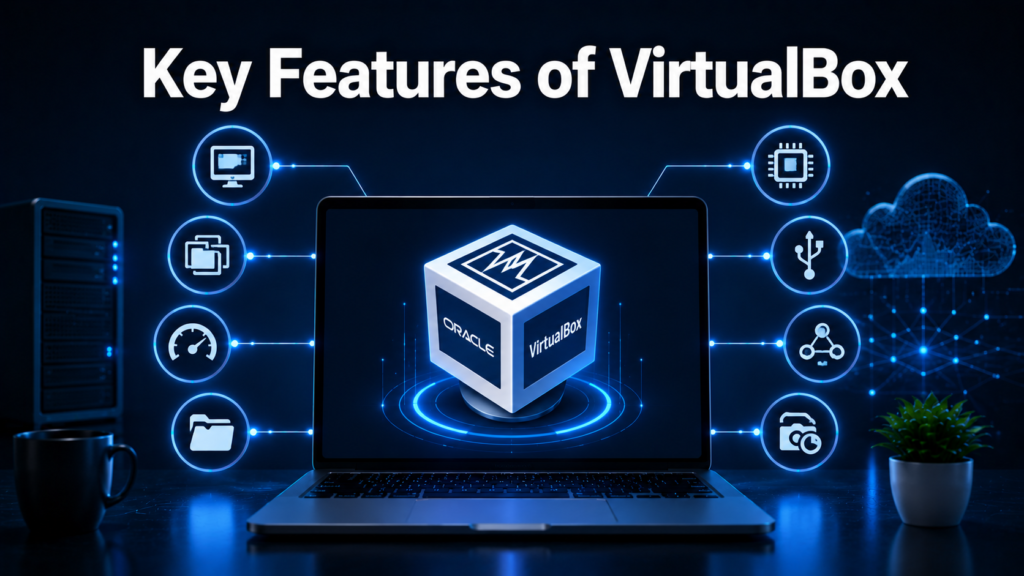
Vbox software comes packed with useful features that make virtualization simple and efficient. These features are one reason why it remains a popular choice among free virtualization tools.
- Cross-Platform Support
- Vbox software works on Windows, macOS, Linux and Solaris systems, giving users flexibility no matter which platform they prefer. This wide compatibility is one of its biggest advantages over many competing tools.
- Snapshot Feature
- Snapshots allow users to save the current state of a virtual machine and return to it later if something goes wrong. This is extremely helpful when testing new software or making risky changes inside a VM.
- Shared Folders
- The shared folders feature lets users transfer files easily between the host computer and the virtual machine. This removes the need for external drives or online storage when moving data back and forth.
- Seamless Mode
- Seamless mode blends the guest operating system’s windows directly into the host desktop, making it feel like both systems are working together. This feature is convenient for users who need frequent access to guest applications.
- Clone VM Feature
- Cloning allows users to create an exact copy of an existing virtual machine within minutes. This saves time when multiple similar test environments are needed for development or training purposes.
- Guest Additions
- Guest Additions are extra drivers and tools installed inside the guest OS to improve performance and usability. They allow better screen resolution, smoother mouse movement and faster file sharing.
- Support for Multiple OS Installations
- Vbox software allows users to install several different operating systems at the same time on one physical computer. This makes it easy to compare systems or run software that works only on a specific OS.
- Networking Options
- VirtualBox offers different networking modes including NAT, Bridged and Host-only adapters, allowing virtual machines to connect to the internet or local networks as needed. Users can choose the mode based on their specific requirements.
System Requirements
Knowing the system requirements before installing vbox software helps avoid performance issues later. The requirements are generally light compared to other virtualization programs.
Minimum Hardware Requirements
A computer with at least 4GB RAM, a dual-core processor and around 20GB of free storage can run vbox software without major problems. However, actual performance also depends on the guest operating system being installed.
Recommended Specifications
For smoother performance, especially when running multiple virtual machines, 8GB or more RAM along with an SSD storage drive is recommended. A modern multi-core processor also helps in handling heavier workloads efficiently.
Supported Host Operating Systems
Vbox software supports Windows, macOS, various Linux distributions and Solaris as host operating systems. This broad support ensures that most users can install it regardless of their main computer’s operating system.
Supported Guest Operating Systems
Almost all major operating systems, including different Windows versions, Linux distributions, BSD and even old systems like DOS, can be installed as guest systems. This wide compatibility makes vbox software suitable for many different testing needs.
Installation Guide
Installing vbox software is a straightforward process that takes only a few minutes on most computers. The steps are slightly different depending on the host operating system being used.
Downloading VirtualBox
The software can be downloaded directly from the official Oracle VirtualBox website, where different versions are available for various operating systems. Always download from the official source to avoid fake or harmful files.
Step-by-Step Installation on Windows
After downloading the installer file, users simply need to run it and follow the on-screen instructions, keeping default settings unless a specific configuration is needed. The installation usually completes within a few minutes and may require a temporary network disconnection.
Step-by-Step Installation on macOS
On macOS, users open the downloaded package file and follow the guided installation steps, which may include allowing system permissions in security settings. Once completed, the application appears in the system’s application folder.
Step-by-Step Installation on Linux
Linux users can install vbox software either through their distribution’s package manager or by downloading the specific package file from the official website. Following the correct repository setup ensures smoother updates in the future.
Installing Extension Pack
The Extension Pack adds extra features like USB 3.0 support and remote display capability to vbox software. It must be downloaded separately and installed through the VirtualBox settings menu after the main installation.
Common Installation Errors and Fixes
Some users face issues like driver conflicts or virtualization not being enabled in BIOS settings. Enabling virtualization technology in the computer’s BIOS and restarting the installation usually resolves most common problems.
Creating Your First Virtual Machine
Once vbox software is installed, creating a virtual machine is simple and only requires a few basic steps. This section walks through the entire process from start to finish.
Opening VirtualBox Interface
After installation, opening the application shows a clean dashboard where users can manage all their virtual machines. New users will find the “New” button prominently placed to begin creating a VM.
Creating a New VM
Clicking the new virtual machine option opens a setup wizard asking for the VM name and the type of operating system to be installed. This information helps the software configure suitable default settings automatically.
Allocating RAM and CPU
During setup, users must choose how much RAM and how many processor cores to assign to the virtual machine. It is important to leave enough resources for the host system to keep running smoothly.
Creating Virtual Hard Disk
A virtual hard disk acts as the storage space for the guest operating system, and users can choose its size and file format during setup. This virtual disk is stored as a file on the host computer.
Mounting ISO File
To install an operating system, users need to mount an ISO file, which acts like inserting an installation disc into the virtual machine. This file is usually downloaded separately based on the OS being installed.
VirtualBox Interface Overview
The interface of vbox software is designed to be simple, even for users who have never worked with virtualization tools before. Each section of the dashboard serves a specific management purpose.
Main Dashboard Explained
The main dashboard lists all created virtual machines along with basic details like allocated memory and current status. Users can start, pause or delete machines directly from this screen.
Settings Menu Breakdown
The settings menu allows detailed customization of each virtual machine, including display, storage and network configurations. This menu is where most advanced adjustments are made after the initial setup.
Snapshot Manager
The Snapshot Manager displays all saved snapshots for a virtual machine in a simple tree structure. Users can restore, delete or create new snapshots directly from this section.
Network Settings Panel
This panel controls how a virtual machine connects to the internet or local network using different adapter types. Proper configuration here is essential for tasks requiring internet access inside the VM.
Guest Additions – Why They Matter
Guest Additions play an important role in improving the overall experience of using vbox software. Without them, certain features may not work as smoothly as expected.
What are Guest Additions?
Guest Additions are a set of drivers and system programs installed inside the guest operating system to improve integration with the host machine. They act as a bridge between the virtual environment and the physical hardware.
How to Install Guest Additions
Installing Guest Additions usually involves selecting the option from the VirtualBox menu, which mounts a virtual CD inside the guest OS for installation. After running the installer inside the guest system, a restart completes the process.
Benefits of Guest Additions
Once installed, Guest Additions allow better screen resolution, smoother mouse control and shared clipboard functionality between host and guest. These improvements make daily use of the virtual machine much more comfortable.
Networking in VirtualBox
Networking is an essential part of using vbox software, especially for tasks involving internet access or local connections. Different modes serve different purposes depending on user needs.
NAT Mode Explained
NAT mode allows the virtual machine to access the internet through the host computer’s connection without requiring extra configuration. This is the default and simplest option for most users.
Bridged Adapter Mode
Bridged mode makes the virtual machine appear as a separate device on the same network as the host computer. This is useful when the VM needs to be accessed directly by other devices on the network.
Host-Only Adapter
Host-only networking creates a private connection between the host and guest systems without internet access. It is often used for isolated testing environments where external connections are not needed.
Internal Networking
Internal networking allows multiple virtual machines to communicate with each other without involving the host system at all. This mode is useful for simulating small private networks for testing purposes.
Snapshots and Backup
Snapshots are one of the most valuable safety features available in vbox software. They protect users from losing important work during risky testing or configuration changes.
What are Snapshots?
A snapshot captures the exact state of a virtual machine at a specific moment, including its files and settings. This allows users to return to that exact point if something goes wrong afterward.
How to Take a Snapshot
Taking a snapshot only requires selecting the option from the machine’s menu and giving it a recognizable name. The process usually takes only a few seconds depending on the size of the virtual machine.
Restoring a Snapshot
If an issue occurs, users can restore a previous snapshot instantly, reverting all changes made after that point. This feature is especially helpful when testing software updates or system changes.
Common Use Cases of VirtualBox
Vbox software is used across many different fields due to its flexibility and ease of use. The following areas highlight where it proves most beneficial.
Software Testing and Development
Developers use virtual machines to test applications across different operating systems without needing separate physical devices. This speeds up development while reducing hardware costs significantly.
Running Multiple Operating Systems
Many users install different operating systems side by side to compare features or use software that only works on a specific platform. This eliminates the need for multiple physical computers.
Cybersecurity and Malware Analysis
Security professionals often use isolated virtual machines to safely analyze suspicious files or malware without risking their main system. Snapshots make it easy to reset the environment after each test.
Learning and Educational Purposes
Students studying operating systems or networking concepts use vbox software to practice in a safe, controlled environment. It allows hands-on learning without the fear of damaging a real computer.
Server Simulation
IT professionals often simulate server environments using virtual machines before deploying changes to actual production servers. This reduces the risk of costly mistakes in live systems.
VirtualBox vs Other Virtualization Software
Comparing vbox software with other popular tools helps users understand where it stands in terms of features and pricing. Each tool has its own strengths depending on user requirements.
VirtualBox vs VMware
VMware often offers slightly better performance for professional use but comes with paid licensing for advanced features, while vbox software remains completely free. For casual and educational use, VirtualBox is usually the more practical choice.
VirtualBox vs Hyper-V
Hyper-V is built into certain Windows editions and offers strong performance but lacks the cross-platform flexibility of vbox software. Users needing macOS or Linux support generally prefer VirtualBox instead.
VirtualBox vs Parallels
Parallels is popular among Mac users for its smooth integration but requires a paid subscription, unlike the free nature of vbox software. Budget-conscious users often lean toward VirtualBox for this reason.
Pros and Cons Comparison Table
| Feature | VirtualBox | VMware | Hyper-V | Parallels |
| Cost | Free | Paid (Pro) | Free with Windows | Paid |
| Cross-Platform | Yes | Limited | No | Mac Only |
| Ease of Use | High | Medium | Medium | High |
| Performance | Good | Very Good | Very Good | Very Good |
Troubleshooting Common Issues
Even though vbox software is generally stable, users may occasionally face technical issues. Knowing basic fixes can save time and frustration.
VM Not Booting
This issue often occurs due to incorrect boot order or a corrupted ISO file, and checking the storage settings usually resolves it. Re-mounting the correct installation file also helps in most cases.
Slow Performance Issues
Slow performance is commonly caused by insufficient RAM allocation or too many background applications running on the host system. Adjusting resource allocation in the settings menu often improves speed.
Network Connectivity Problems
Connectivity issues usually stem from incorrect adapter selection, and switching between NAT and Bridged mode often solves the problem. Restarting the virtual machine after changes also helps apply new settings properly.
Guest Additions Installation Failure
This failure often happens due to missing dependencies inside the guest OS, which can be fixed by updating the guest system first. Reinstalling Guest Additions afterward usually resolves the issue completely.
Tips and Best Practices
Following a few simple practices can significantly improve the experience of using vbox software over time. These tips help maintain both performance and data safety.
Optimizing VM Performance
Allocating appropriate RAM and CPU resources, along with enabling hardware virtualization in BIOS, greatly improves overall VM performance. Keeping the host system’s background processes minimal also helps.
Allocating Resources Efficiently
Users should avoid over-allocating resources to a single VM if multiple machines are running simultaneously. Balanced allocation ensures smooth performance across all active virtual machines.
Security Best Practices
Keeping vbox software updated and using isolated network modes for sensitive testing helps maintain better security. Avoiding unnecessary shared folders also reduces potential risks.
Regular Snapshot Management
Deleting old and unnecessary snapshots periodically helps save storage space and keeps the system organized. Regular management ensures snapshots remain useful rather than cluttered.
Conclusion
Vbox software remains one of the most accessible and reliable virtualization tools available today. Its free availability, wide compatibility and useful features make it suitable for students, developers and IT professionals alike. Whether the goal is testing new software, learning about operating systems or running isolated environments safely, this tool continues to prove its value across many real-world situations.
FAQs
Is vbox software free to use?
Yes, it is completely free and available for personal, educational and even commercial use without any license cost.
Is vbox software safe to use?
Yes, it is safe as long as it is downloaded from the official website and used with updated versions.
Can vbox software run macOS as a guest system?
Running macOS as a guest is possible but comes with licensing restrictions from Apple, so it is not officially supported for regular commercial use.
Related Articles
Pros and Cons of a Parking Management Software: Complete Guide 2026
Workforce Housing Management Software Features: Complete 2026 Guide
Financial Recovery Technologies Software Engineer:
Irrigation Design Software: Complete Guide for Efficient Water Management
Rippling HR Software Market Share 2026 : Complete Market Analysis


