

Is Octopus Software Safe? A Complete Security Guide for 2026
July 22, 2026
Biochrom Resolution Software Free Download – Complete Guide
July 23, 2026
MCHOSE web software, also known as M HUB WEB, is a browser based tool that lets you configure MCHOSE mice, keyboards and headsets without installing a separate driver on your computer. It works directly inside Chrome, Edge or Opera, which makes it convenient for people who switch between systems often.
This guide explains how the software works, which devices it supports, how to set it up correctly and how to solve common problems. Whether you are a casual user or a competitive gamer, this article will help you understand the tool in simple language.
Introduction to MCHOSE Web Software
MCHOSE web software was built so that users could manage their gaming gear without downloading heavy driver files every time. It gives quick access to lighting, key mapping and performance settings straight from a browser tab. Below we look at what it actually is and who benefits from using it the most.
What Is MCHOSE HUB and M HUB WEB
MCHOSE HUB is the official peripheral management platform from MCHOSE, and M HUB WEB is its browser based version. Instead of installing software permanently on your machine, you open a webpage, connect your device and start adjusting settings right away. Once you save your changes, you can simply close the tab because the settings remain stored on the device itself.
Why a Web Based Driver Makes Sense
Many peripheral brands force users to install bulky desktop applications that run in the background and consume system memory. MCHOSE web software avoids this by keeping everything inside the browser, so your computer stays lighter and faster.
This approach is especially useful for people who use shared computers, laptops with limited storage or simply prefer not to install extra programs.
Who Should Use This Tool
Gamers who want quick access to DPI and polling rate adjustments will find this tool handy, and so will everyday users who just want to set up RGB lighting once and forget about it. Content creators using MCHOSE headsets can also benefit from adjusting EQ settings without a full driver install. Basically, anyone who owns MCHOSE hardware and wants a lightweight way to control it can use this software comfortably.
Supported Devices on MCHOSE Web Software
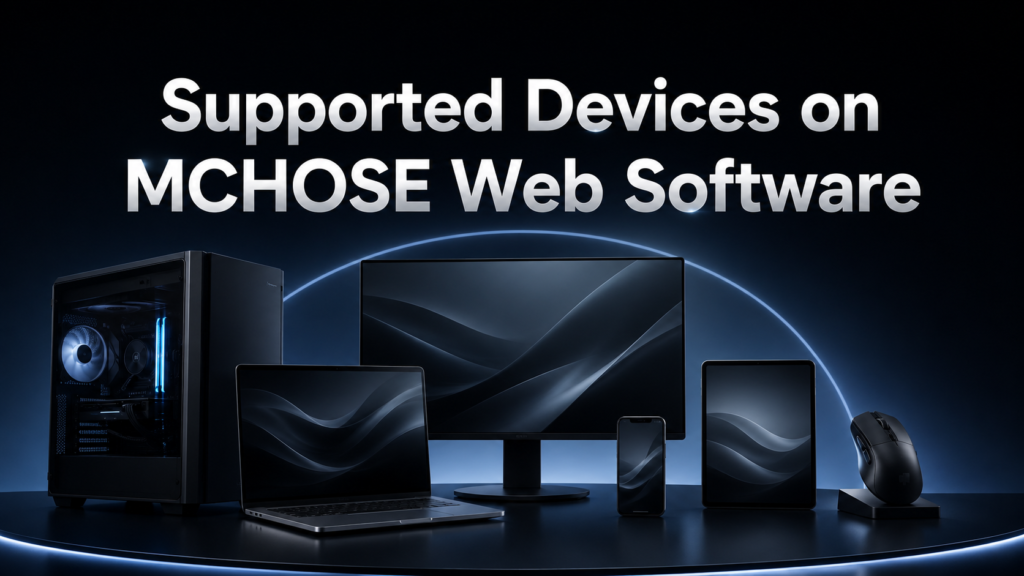
MCHOSE web software supports a fairly wide range of hardware including mice, mechanical keyboards, hall effect keyboards and select audio devices. The table below breaks down the main categories so you know exactly what is compatible.
| Device Category | Example Models |
| Mice | A7X Ultra, K7 Ultra, A7 Series, M7 Series, L7 Series, G7 Series, G3 A, G3 Ultra, A5 Series, AX5 V2 |
| Hall Effect Keyboards | Ace 60 Series, Ace 68 Series, Ace 68 Air, Ace 68 Turbo, Jet 75 Series, ZERO 75X, Mix 87 Series |
| Mechanical Keyboards | UT98, K99 Series, G98 Series, G87 Series, K87S, X75 Series, GX87S, KX75 |
| Audio Devices | Selected wireless and wired headsets with EQ support |
Mice Compatibility
The mouse lineup covers both budget and higher tier models, meaning users at different price points can still access the same web driver features. Devices like the A7X Ultra and K7 Ultra support full DPI, polling rate and macro configuration through the browser. Older or entry level models may have slightly fewer adjustable settings compared to the flagship series.
Keyboard Compatibility
Hall effect keyboards such as the Ace 68 series support rapid trigger and actuation point adjustments, which are settings unique to magnetic switch technology.
Mechanical keyboards like the K99 and G87 series focus more on key remapping and lighting effects rather than actuation depth. Both categories can be managed from the same web interface without switching tools.
Audio Device Limitations
Audio devices are only supported through the dedicated M HUB driver rather than fully through the web version in every case, and Bluetooth connections are not supported for configuration purposes.
Wireless headsets typically need to be connected through their 2.4G adapter for the software to detect them properly. This limitation is worth knowing before you assume every feature works the same across all device types.
System and Browser Requirements
Before using MCHOSE web software, it helps to confirm that your system and browser meet the basic requirements. This section covers supported browsers, operating systems and connection types so you avoid unnecessary setup errors.
Supported Browsers
The software is designed to run smoothly on Chrome, Edge and Opera since these browsers support the web based HID permissions needed for device communication. Using an unsupported browser may cause the device list to appear empty or the page to fail loading properly. If you run into detection issues, switching to one of these three browsers usually resolves the problem quickly.
Operating System Compatibility
Windows 10 and above fully support both the desktop driver and the web version, giving Windows users the most complete experience. macOS users can only access the web based driver since a native macOS application is not currently available.
Linux is not supported at all at this time, so Linux users will need an alternate method or a separate machine for configuration.
Connection Modes Explained
Devices can connect through a wired USB connection or through a 2.4G wireless receiver, and both methods work fine with the web software. Bluetooth mode is not compatible with any configuration software from MCHOSE, including the web version, so lighting and macro changes cannot be made over Bluetooth. Keeping this in mind avoids confusion when a device appears connected but does not respond to setting changes.
Getting Started With MCHOSE Web Software
Getting started with the tool takes only a few minutes once your browser and device connection are ready. This section walks through the actual steps of accessing the software and preparing your device for first use.
Accessing the Web Portal
You can reach M HUB WEB directly through the official MCHOSE website without downloading anything extra. Once the page loads, your browser will usually prompt you to grant permission to detect connected HID devices. Accepting this permission is necessary for the software to recognize your mouse, keyboard or headset.
Connecting Your Device
Plug in your device using a USB cable or attach the 2.4G receiver, then refresh the web page if the device does not appear immediately. The interface will display a visual representation of your connected product along with its current firmware version. From here, you can begin adjusting any of the available settings for that specific model.
First Time Setup Walkthrough
On your first visit, it is a good idea to check the firmware version and update it if a newer release is available before making other changes. After confirming firmware status, move on to setting your preferred DPI, polling rate and lighting pattern in that order. Saving your profile at the end locks these settings onto the device memory so they remain even after disconnecting.
Core Features You Can Customize
MCHOSE web software packs a decent number of customization options considering it runs entirely inside a browser tab. This section highlights the main features available and briefly explains what each one controls.
RGB Lighting Customization
Users can choose from multiple lighting effects, adjust brightness and set custom colors for supported mice and keyboards. Some models allow per key lighting control while others use zone based lighting depending on hardware design. This feature is mostly cosmetic but adds a personal touch to your setup.
Key Remapping and Macros
Key remapping lets you reassign buttons on your mouse or keys on your keyboard to perform different actions, which is useful for gaming shortcuts or productivity workflows.
Macro creation allows you to record a sequence of actions and trigger them with a single press. Both features are stored per profile, so you can switch between different configurations for different tasks.
DPI and Polling Rate Settings
DPI settings control how sensitive your mouse cursor is to physical movement, and this can be adjusted in small increments to match your preference. Polling rate determines how often your device reports its position to the computer, with higher rates generally offering smoother tracking. Adjusting both settings correctly can noticeably improve your overall pointing accuracy during gameplay.
Firmware Management and Updates
Keeping your device firmware updated ensures better stability and unlocks any new features MCHOSE adds over time. This section explains how the update process works and what precautions to take beforehand.
Step by Step Firmware Upgrade
To update firmware, visit the official upgrade page and click the first button to begin updating the mouse or keyboard itself. Once that process completes, a second button is used to update the connected receiver if your device uses one. It is important to follow this order since updating the receiver first can cause pairing issues afterward.
Battery and Connection Precautions
Before starting any firmware update, make sure your device battery is charged to at least fifty percent to avoid interruptions during the flashing process. Devices should always be connected in wired mode or through the 2.4G receiver, since Bluetooth connections are not supported for firmware updates. Skipping these precautions is one of the most common reasons firmware upgrades fail midway.
Troubleshooting Common Issues
Even a simple browser based tool can run into occasional hiccups, and most of these have straightforward fixes. This section lists frequent problems users report along with practical solutions.
Device Not Detected
If your device does not show up on the web page, first confirm that HID permissions were granted when the browser asked for them. Refreshing the page or reconnecting the cable often solves detection issues instantly. If the problem continues, switching to a different supported browser is the next logical step.
Lagging or Disconnecting Issues
Random lag or disconnections are usually linked to wireless interference, outdated firmware or a dirty sensor lens on mice. Updating firmware, re-pairing the receiver and cleaning the sensor area typically resolves most of these cases. Avoiding glass mousepads is also recommended since they can interfere with certain sensor types.
MCHOSE Web Software Compared to Similar Tools
Several peripheral brands offer similar browser based configuration tools, and MCHOSE web software holds its own reasonably well against them. Compared to some competitors whose web drivers feel cluttered, MCHOSE keeps its layout fairly organized even though it supports a wide device range.
Brands offering more premium priced hardware sometimes provide slightly smoother web interfaces, but MCHOSE compensates with broader compatibility across budget and mid range devices, making it a practical choice for users who want decent functionality without paying flagship prices.
Frequently Asked Questions
Is MCHOSE web software free to use?
Yes, the software is completely free and does not require any subscription or account purchase.
Can I use MCHOSE web software on macOS?
Yes, macOS users can access the web based driver, though the full desktop application is not available for this operating system.
Does Bluetooth mode support configuration changes?
No, Bluetooth mode does not support lighting, macro or firmware changes on any MCHOSE device currently.
What should I do if the driver screen appears blank?
Try changing your DNS settings on Windows or switching to a different supported browser to resolve loading issues.
Conclusion
MCHOSE web software offers a practical, lightweight way to manage a wide range of MCHOSE mice, keyboards and select audio devices directly from a browser.
Its straightforward setup process, decent feature set and broad device support make it a solid option for both casual and competitive users. As long as you use a supported browser and follow the correct connection mode, most users should find the experience smooth and hassle free.
Related Articles
Is Octopus Software Safe? A Complete Security Guide for 2026
Free Scheduling Software for Plumbers: Complete Guide to Choosing the Right Tool
Can You Play Games Through Software Preview on Elgato HD60?
BassBoss Software: Complete Guide to ControlBASS and PredictBASS
Tesla Software Update 2025.26 Grok: Everything You Need to Know


