

AudienceView Competitors Event Ticketing Software Guide
July 21, 2026
Software Input Panel: A Complete Guide to Virtual Text Entry Systems
July 21, 2026
The Focusrite Saffire 26 software, commonly known as SaffireControl Pro, is the control panel that lets musicians and producers manage this FireWire audio interface with precision. It handles routing, monitoring, mixing, and overall signal flow between your instruments, microphones, and computer.
Understanding how this software works helps you get clean recordings, low-latency monitoring, and a smoother workflow in any home or professional studio setup. This guide walks through every part of the software in plain, easy language so beginners and experienced users can both benefit.
Introduction
Before diving into technical details, it helps to understand what the Saffire 26 actually is and why its companion software plays such an important role. This section covers the basics so the rest of the guide makes complete sense.
What is the Focusrite Saffire 26?
The Focusrite Saffire 26 is a FireWire-based audio interface built for recording musicians, podcasters, and small studios. It offers multiple inputs and outputs so users can connect microphones, guitars, keyboards, and other instruments at the same time.
Its solid build and clean preamps made it a popular choice years ago for home studios needing professional sound quality without a huge budget.
Overview of its role in music production
This interface acts as the bridge between analog sound sources and your computer’s digital audio workstation. Without it, your microphones and instruments cannot properly communicate with recording software.
The Saffire 26 converts analog signals into digital audio, allowing producers to record, edit, and mix tracks with accuracy and minimal noise interference.
Why the control software matters
Hardware alone cannot do much without proper software support. The Focusrite Saffire 26 software gives users control over input levels, monitoring mixes, and routing options that the physical interface cannot handle on its own.
It essentially becomes the command center for shaping how audio flows in and out of your setup, making it just as important as the hardware itself.
Understanding the Saffire 26 Hardware
Knowing the hardware specifications helps users understand what the software is actually controlling. This section briefly explains the interface’s connectivity and its intended audience.
Key specs (inputs/outputs, FireWire connectivity)
The Saffire 26 typically includes multiple analog inputs, several outputs, and digital connectivity options, all linked to the computer through a FireWire cable. FireWire was once considered faster and more stable than USB for audio work, which is why Focusrite chose it for this model. The interface also includes MIDI ports for connecting keyboards or controllers.
Who this interface is designed for
This device suits home studio owners, independent musicians, and small podcast setups that need multiple simultaneous inputs without investing in expensive professional gear. It works well for band recordings, solo artists layering multiple instruments, and anyone needing flexible routing options for creative projects.
Software Overview: SaffireControl Pro / Mixcontrol
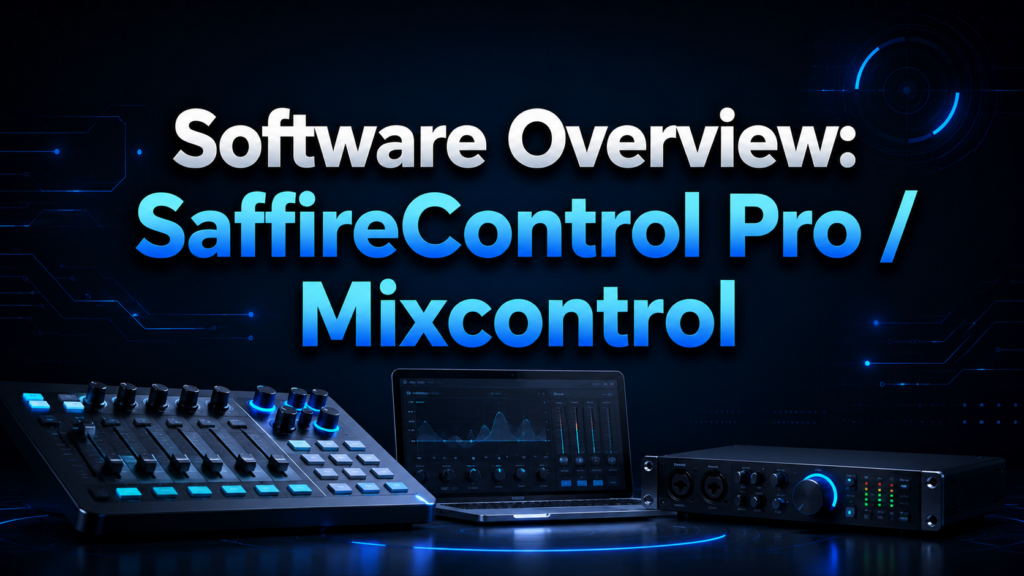
The Focusrite Saffire 26 software comes in different versions depending on when the unit was manufactured. This section explains what the software does and how the versions differ from each other.
What the control software does
The software allows users to route audio signals exactly where they want them to go, whether that’s directly into a recording software or out to studio monitors and headphones. It also enables zero-latency monitoring, meaning musicians can hear themselves in real time without annoying delay while recording.
Difference between SaffireControl Pro and Saffire MixControl
Older Saffire models used SaffireControl Pro, while newer Focusrite interfaces transitioned to Saffire MixControl with a slightly updated interface and additional routing flexibility. Both serve the same core purpose, but MixControl generally offers a cleaner layout and improved compatibility with modern operating systems.
Supported operating systems (Windows/Mac compatibility)
The software was originally built to work with both Windows and Mac systems, though compatibility depends heavily on which operating system version you are running. Since this software is older, users on newer computers sometimes need workarounds or older OS versions to get it running smoothly.
Installation & Setup
Getting the software installed correctly is the first real step toward using your interface properly. This section explains the process from download to first connection.
Downloading the correct driver/software version
It’s important to download the exact version matching your Saffire 26 model and operating system. Using outdated or mismatched drivers is one of the most common reasons users experience connection problems. Focusrite’s official support pages usually list legacy downloads for older interfaces like this one.
Step-by-step installation guide
After downloading the installer, users simply run the setup file and follow on-screen instructions, granting any necessary system permissions along the way. Restarting the computer after installation is often necessary before the interface will be properly recognized.
Connecting the interface via FireWire
Once installed, connecting the Saffire 26 involves plugging in the FireWire cable and powering on the unit. The software should automatically detect the connected hardware, at which point the control panel becomes fully functional.
Firmware updates
Occasionally, firmware updates are required to keep the hardware and software working together properly. These updates usually appear within the control software itself, and users are guided through a simple update process without needing external tools.
Interface Walkthrough
Once installed, the actual layout of the Focusrite Saffire 26 software can look a little overwhelming at first. This section breaks down each major area of the interface.
Main dashboard overview
The main dashboard displays all available inputs and outputs in one organized view, giving users a full picture of their current signal flow. From here, adjustments to levels, routing, and monitoring can all be made without switching between multiple windows.
Input channel strip explained
Each input channel includes controls for gain, panning, and monitoring level, allowing precise adjustments for every connected microphone or instrument. This section of the software is where most day-to-day tweaking happens during recording sessions.
Output routing section
The output section lets users decide exactly where each audio signal should be sent, whether to speakers, headphones, or specific recording channels. This flexibility is especially useful when multiple musicians are monitoring different mixes simultaneously.
Mix bus controls
Mix bus controls allow combining multiple inputs into a single balanced output, which is particularly helpful when creating custom monitor mixes for live tracking sessions.
Routing & Signal Flow
Signal routing is arguably the most powerful feature of the Focusrite Saffire 26 software, giving users studio-level control over how audio travels through their system.
- Understanding input routing
- Input routing determines where each incoming signal is directed once it reaches the software, whether straight into your DAW or into a specific monitor mix. Getting this right prevents confusion during multi-track recording sessions.
- Setting up monitor mixes
- Monitor mixes let musicians hear a custom blend of instruments and vocals while recording, separate from what’s actually being recorded onto the track. This is especially useful for headphone mixes during live band sessions.
- Creating zero-latency monitoring
- Zero-latency monitoring uses the hardware itself to route sound directly to headphones, bypassing the need for the audio to pass through the computer first. This eliminates the small delay that can otherwise throw off a musician’s timing during recording.
- Routing to DAW vs. hardware outputs
- Users can choose whether audio goes directly into their recording software or straight out to physical outputs like studio monitors, depending on whether they are tracking or just listening back to previous recordings.
Mixing Features
Beyond simple routing, the Focusrite Saffire 26 software includes several mixing tools that add flexibility to the recording process.
Built-in EQ and compression (if applicable)
Depending on the software version, some basic EQ and compression tools may be available directly within the mixer, allowing minor tonal adjustments before the signal even reaches the DAW.
Creating custom headphone mixes
Custom headphone mixes let each musician hear a different balance of instruments, which is incredibly useful during band rehearsals or live tracking sessions where everyone needs something slightly different in their ears.
Saving and recalling mixer presets
Once a mix is set up the way you like it, the software allows saving that configuration as a preset, so it can be recalled instantly during future sessions instead of rebuilding it from scratch each time.
Integration with DAWs
The Focusrite Saffire 26 software doesn’t work in isolation — it needs to communicate properly with your recording software to be genuinely useful.
Connecting with popular DAWs (Ableton, Logic, Pro Tools, Cubase)
Most major DAWs recognize the Saffire 26 as an audio interface once drivers are properly installed, allowing seamless recording, playback, and monitoring directly within your chosen software environment.
Setting buffer size and sample rate
Buffer size and sample rate settings directly affect latency and audio quality, so adjusting them correctly within both the DAW and the control software ensures smooth recording without glitches or excessive delay.
Troubleshooting DAW recognition issues
If your DAW doesn’t recognize the interface, checking driver installation, cable connections, and audio device settings within the DAW’s preferences usually resolves the issue quickly.
Common Issues & Troubleshooting
Like any older piece of technology, the Saffire 26 and its software can run into occasional problems. This section covers the most frequent issues users report.
Driver conflicts
Driver conflicts often happen when multiple audio devices are installed on the same system, causing confusion over which device should be the primary audio source. Uninstalling unused audio drivers usually fixes this.
FireWire connection problems
Since FireWire is an older technology, cable quality and port compatibility can cause connection drops. Using a reliable cable and checking port functionality on newer computers helps avoid this issue.
No sound/latency issues
No sound or noticeable latency usually points back to incorrect buffer settings or routing mistakes within the software’s dashboard. Double-checking input and output assignments typically solves the problem.
Software crashes or freezing
Older software occasionally struggles with newer operating systems, leading to crashes. Running the software in compatibility mode or using an older, dedicated computer for this interface can prevent these frustrations.
Maintenance & Best Practices
Keeping the Focusrite Saffire 26 software running smoothly over the long term requires a few simple habits.
Keeping software/drivers updated
Even though updates for this legacy product are limited, checking Focusrite’s official site occasionally ensures you have the most stable driver version available for your system.
Backing up mixer settings
Regularly saving backup copies of your mixer presets protects your custom setups in case of software reinstalls or system changes down the line.
Optimizing performance for recording sessions
Closing unnecessary background applications and dedicating a stable computer setup specifically for recording sessions helps maintain consistent performance from the interface and software.
Alternatives & Modern Considerations
Since the Saffire 26 is considered a legacy product, it’s worth understanding how it compares to newer options available today.
Since Saffire 26 is a legacy product, discuss modern equivalents
Focusrite’s newer Scarlett and Clarett series interfaces offer similar or better performance using USB connectivity instead of FireWire, making them easier to use with modern computers that often lack FireWire ports entirely.
Compatibility with new operating systems (older FireWire tech vs. USB-C interfaces)
Many current operating systems no longer support FireWire natively, requiring adapters or older machines to keep the Saffire 26 functional. This is an important consideration for anyone planning long-term studio use with this particular interface.
Competitor Analysis
Compared to other interfaces from the same era, such as the M-Audio ProFire series or the Presonus FireStudio, the Saffire 26 stood out for its clean preamps and intuitive software layout.
However, modern USB-based competitors from Focusrite itself and other brands like Universal Audio now offer better long-term compatibility, making the Saffire 26 more of a legacy choice for users who already own the hardware rather than a recommended new purchase.
FAQs
Is Focusrite Saffire 26 software still supported?
Official support is limited since this is a legacy product, though downloads often remain available on Focusrite’s website for existing users.
Can I use Saffire 26 software on a new computer?
It depends on the operating system version, as newer systems may lack FireWire support or driver compatibility, sometimes requiring older hardware or adapters.
What’s the difference between SaffireControl Pro and MixControl?
SaffireControl Pro is the older version used for earlier models, while MixControl offers a slightly refined interface for later Saffire units.
Conclusion
The Focusrite Saffire 26 software remains a capable tool for anyone still using this classic FireWire interface, offering solid routing, monitoring, and mixing features that hold up well even years after release.
While newer alternatives exist for those upgrading their studio, understanding this software thoroughly ensures current owners can continue getting reliable, professional results from their existing setup.
Related Articles
Software Egg: The Complete Guide to Hidden Easter Eggs in Technology
Remote Software Engineer Jobs: The Complete Guide to Building a Successful Career From Anywhere
Develop Oxzep7 Software: A Complete Beginner-Friendly Guide
RFP 2025 Software: Complete Guide to Choosing the Best Proposal Tool
EasySuite Software Download Free: Complete Guide to Features, Pricing and Installation


