

Best Employee Engagement Software : Complete Guide
August 18, 2026
What Is Data Warehouse Software? A Complete Guide
August 19, 2026
A corrupted SD card can feel like a small disaster, especially when it holds photos, videos, or important documents that were never backed up anywhere else. The good news is that corruption does not always mean permanent loss, because the actual data usually stays on the card even when the file system stops reading it properly.
Using the right data recovery software for corrupted SD card situations, most users can scan the card, locate readable file fragments, and restore them to a safe location. This guide walks through why corruption happens, which tools actually work, and how to use them correctly without making the damage worse.
Understanding SD Card Corruption
SD card corruption happens when the file system that organizes your data becomes unreadable, even though the physical storage chips are often still intact. Knowing the difference between corruption and permanent damage helps you choose the right recovery approach below.
What Corruption Really Means
Corruption refers to a breakdown in the card’s file allocation table, not the destruction of the files themselves.
The operating system loses track of where files are stored, so it shows errors like “card not formatted” or blank folders. This is exactly why recovery software works in most cases, since it scans the raw storage instead of relying on the broken file index.
Common Causes of Corruption
Most corruption cases trace back to a handful of repeatable mistakes rather than random bad luck. Removing the card while a file is still writing, letting the device battery die mid-transfer, or using the same card across multiple devices without safe ejection are frequent triggers. Bad sectors, outdated firmware, and low-quality or counterfeit cards also contribute heavily to this problem.
Immediate Steps After Discovering Corruption
The actions you take in the first few minutes after noticing corruption often decide whether recovery succeeds or fails. This section covers what helps and what quietly destroys your chances.
What You Should Do Right Away
Stop using the card immediately and avoid taking new photos or saving anything to it, since new writes can overwrite the very sectors holding your lost files.
Remove the card safely and place it in a different card reader to rule out a hardware connection issue rather than actual corruption. Make a full sector-by-sector image of the card if possible before running any recovery tool, so you always have a backup copy to work from.
Mistakes That Cause Permanent Data Loss
Formatting the card the moment an error appears is one of the most common and damaging reactions, since it can overwrite the file table needed for recovery.
Running multiple recovery tools back-to-back on the original card, instead of a cloned image, increases the risk of write errors. Saving recovered files back onto the same corrupted card is another mistake that frequently overwrites unrecovered data before it can be extracted.
How SD Card Recovery Software Works
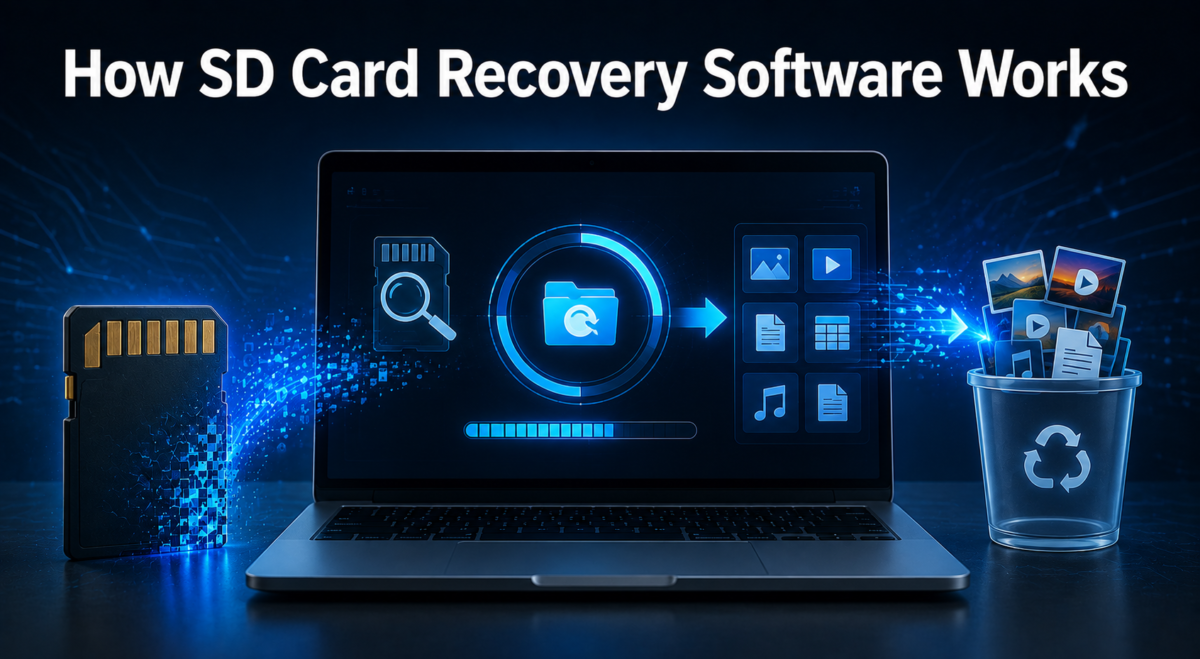
Recovery tools do not “repair” your files in the traditional sense; instead, they read the raw data blocks on the card directly. Understanding this process explains why some tools succeed where basic troubleshooting fails.
Reading Raw Data Instead of the File System
When a file is deleted or a card becomes corrupted, the data typically remains in the physical memory until it gets overwritten by something new.
Recovery software bypasses the damaged file system and scans the storage at a lower level to find these leftover data patterns. This is called raw or deep scanning, and it is far more effective on corrupted cards than a normal file browser.
File Signature Recovery Explained
Every file type, such as JPEG, MP4, or DOCX, has a unique digital signature at the start and end of its data.
Recovery software scans for these signatures across the entire card and reconstructs files even when the original file names and folder structure are gone. This is why recovered photos or videos sometimes appear with generic names instead of their original titles.
Best Data Recovery Software for Corrupted SD Card
Several tools stand out for handling corrupted SD cards effectively, each with different strengths depending on your budget and technical comfort level. The table below compares them before individual details are explained.
| Software | Platform | Free Option | Best For |
| Recuva | Windows | Yes | Beginners, quick recovery |
| PhotoRec | Windows/Mac/Linux | Yes | Deep scans, all file types |
| Disk Drill | Windows/Mac | Limited | User-friendly interface |
| EaseUS Data Recovery Wizard | Windows/Mac | Limited | Photos and videos |
| Stellar Data Recovery | Windows/Mac | Limited | Severely corrupted cards |
| R-Studio | Windows/Mac/Linux | Trial | Advanced/technical users |
| TestDisk | Windows/Mac/Linux | Yes | Partition and file system repair |
Recuva
Recuva is one of the most beginner-friendly tools available, offering a simple wizard that guides users through scanning and recovering files. It works well for lightly corrupted cards and supports common formats like JPEG, PNG, and MP4. Its free version covers most casual recovery needs without requiring technical knowledge.
PhotoRec
PhotoRec is an open-source tool that performs deep, signature-based scanning across almost any storage device. It ignores the file system entirely, which makes it especially strong for badly corrupted or unrecognized SD cards. The trade-off is a command-line style interface that feels less polished than paid alternatives.
Disk Drill
Disk Drill combines an intuitive interface with solid recovery rates for photos, videos, and documents. It includes a preview feature that lets users see recoverable files before committing to a purchase. This makes it a practical middle ground between free tools and fully professional software.
EaseUS Data Recovery Wizard
EaseUS is widely used for recovering media files from corrupted or accidentally formatted SD cards. It offers a clear step-by-step scanning process and strong support for camera and drone footage formats. The free tier has a data limit, so larger recoveries usually require the paid version.
Stellar Data Recovery
Stellar is often recommended for cards that show severe corruption, including cards that are not recognized at all by the operating system. It includes deep scan modes built specifically for damaged file systems. This makes it a strong option when lighter tools fail to detect any files.
R-Studio
R-Studio is built for advanced users who need granular control over the scanning and recovery process. It supports complex file systems and offers detailed customization that casual tools do not provide. The learning curve is steeper, but the recovery precision is often higher for technical cases.
TestDisk
TestDisk focuses on repairing partition tables and file systems rather than just extracting files. It pairs naturally with PhotoRec, since the two are distributed together and complement each other’s strengths. This tool is particularly useful when the card shows as “unallocated” or unreadable in disk management.
Step-by-Step Guide to Recovering Data
Following a consistent process matters more than which specific tool you choose, since rushing any step can reduce your success rate. This section outlines the safest recovery sequence.
Preparing the Card and Software
Insert the corrupted card into a reliable card reader and connect it directly to your computer rather than through a hub. Install your chosen recovery software on the computer’s internal drive, never on the SD card itself. Confirm the tool detects the card correctly before starting any scan.
Running the Scan
Start with a quick scan to check for easily recoverable files, then move to a deep or raw scan if the results are incomplete. Deep scans take significantly longer, sometimes several hours for larger cards, but they check every sector rather than relying on file system markers. Let the scan complete fully instead of interrupting it partway through.
Previewing and Saving Recovered Files
Most recovery tools let you preview images and documents before restoring them, which helps confirm the files are intact rather than corrupted fragments. Select only the files you actually need to save time, especially on cards with thousands of recoverable items. Always save recovered files to a different drive, never back onto the original SD card.
When Software Cannot Recover Your Data
Not every corruption case can be solved with software, particularly when the damage is physical rather than logical. Recognizing these signs early saves time and prevents further damage.
Signs of Physical Damage
Clicking sounds, cards that overheat, or cards that are not detected by any reader at all typically point to physical failure.
Software cannot fix broken memory chips or damaged connectors, regardless of how advanced the recovery algorithm is. In these cases, continuing to insert and remove the card repeatedly usually worsens the damage.
When to Use Professional Recovery Services
Professional data recovery labs use cleanroom environments and specialized hardware to extract data directly from damaged memory chips.
This route is worth considering when the data is highly valuable and software attempts have already failed. Costs vary widely depending on damage severity, so requesting a diagnostic quote beforehand is a reasonable step.
Preventing Future SD Card Corruption
Prevention is far less stressful than recovery, and most corruption cases are avoidable with a few consistent habits. Building these into your routine reduces the need for recovery software altogether.
Safe Usage Habits
Always use the “safely eject” option before removing a card from a computer, and avoid pulling it out while a device is actively writing data.
Keep device batteries charged above a safe threshold during long recording or transfer sessions. Avoid switching a single card rapidly between multiple devices with different firmware versions.
Backup and Maintenance Practices
Following the 3-2-1 backup rule, which means keeping three copies of data on two different media types with one stored offsite, significantly reduces risk.
Periodically check card health using manufacturer tools to catch early signs of wear before failure occurs. Replacing cards every few years, especially high-use ones, is a small cost compared to potential data loss.
Frequently Asked Questions
Can a formatted SD card still be recovered?
Yes, formatting usually clears the file table rather than the actual data, so recovery software can often restore files unless new data has already overwritten them.
Does running recovery software damage the card further?
When used correctly on a card connected in read-only conditions, recovery software does not typically cause additional damage, though repeated aggressive scanning on a failing card carries some risk.
How long does the recovery process usually take?
Recovery time depends heavily on card size and scan type, ranging from a few minutes for quick scans to several hours for deep raw scans on larger cards.
Is free recovery software safe to use?
Reputable free tools like PhotoRec and Recuva are safe when downloaded from official sources, though they may lack some conveniences found in paid alternatives.
Conclusion
Corrupted SD cards are recoverable in most cases, provided you act quickly and avoid overwriting the card before running a proper scan.
Free tools like PhotoRec and Recuva handle common cases well, while paid options like Stellar or R-Studio suit more severe or technical recoveries. When physical damage is involved, professional services remain the safer and more reliable choice over repeated software attempts.
Related Articles
Software Noobs: A Complete Beginner’s Guide to Software
Dental Software Management: A Complete Guide for Modern Dental Practices
Redragon Software 1.0.58: Complete Download, Installation & Usage Guide
Dental Software Management: A Complete Guide for Modern Dental Practices
Redragon Software 1.0.58: Complete Download, Installation & Usage Guide


