

What is Business Software? A Complete Guide
August 3, 2026
Ham Radio Software For Windows Free: Complete Guide
August 4, 2026
If you own an AKAI MPK controller and want to customize its pads, knobs, and keys, then AKAI MPK Editor tool software download is the first thing you need to search for. This official software helps you map every button on your device according to your own workflow.
Whether you are a beginner producer or an experienced musician, this editor makes your controller fully personal. In this guide, you will learn what this software is, where to get it safely, and how to use it step by step.
What is AKAI MPK Editor?
AKAI MPK Editor is a free desktop application made by Akai Professional. It allows users to reprogram pads, knobs, and keys on their MPK series controllers according to their music production needs.
Overview of the Software
This software acts like a bridge between your physical controller and your computer. Once installed, it reads your MPK device and shows every pad, knob, and key on screen.
You can then click on any element and change its function instantly. This saves a lot of time compared to manually adjusting settings through the device buttons alone.
Key Purpose of the Editor
The main purpose of this tool is customization. Producers often need different pad layouts for drums, different knob assignments for effects, and unique presets for different songs. This editor lets you build all of that within a simple interface, then save it directly to your controller’s memory for instant recall later.
Difference Between MPK Editor and DAW Software
Many beginners confuse MPK Editor with a Digital Audio Workstation like FL Studio or Ableton. However, these are completely different tools.
A DAW is used to record, mix, and produce full songs, while MPK Editor only configures how your controller communicates with any software you use. Think of MPK Editor as the remote control settings menu, not the actual music-making program.
Compatible AKAI MPK Devices
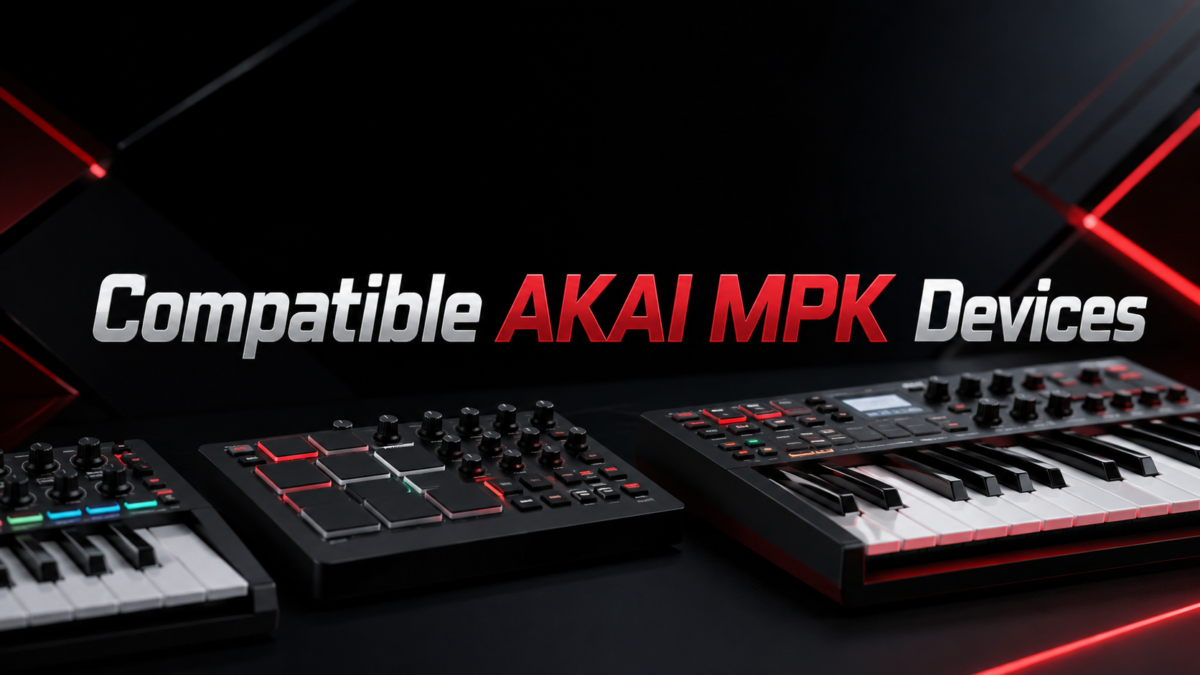
Not every AKAI product uses the same version of this editor, so knowing your exact model number is important before downloading anything.
MPK Mini Series
The MPK Mini MK1, MK2, and MK3 are some of the most popular compact controllers, and all three versions are supported by their respective editor software builds. Each version has slightly different pad and knob layouts, so the correct driver must be selected during download.
MPK225, MPK249, and MPK261
These are the larger, professional-grade controllers built for studio use. They include additional faders, transport controls, and larger pad sections, all of which can be mapped using the same editor family with expanded customization options.
MPK Mini Play and Other Models
The MPK Mini Play is a standalone controller with built-in sounds, and it also has its own dedicated editing software. Other models, including older AKAI keyboards, may require legacy versions of the tool, which are usually archived separately on the official support page.
System Requirements
Before downloading, it is important to check whether your computer meets the basic requirements for smooth installation and performance.
Windows Requirements
For Windows users, the software generally supports Windows 10 and Windows 11, with a minimum of 4GB RAM and an available USB port. Older Windows versions may not receive updated driver support anymore.
macOS Requirements
Mac users need a relatively recent macOS version, usually the last three major releases, along with proper USB-C or USB-A connectivity depending on the controller model. Apple Silicon chips like M1 and M2 are supported through updated native versions.
USB, Drivers, and Storage
Aside from the operating system, you also need a working USB cable, updated device drivers, and at least 200MB of free storage space. Keeping your operating system updated reduces the chances of installation errors.
Where to Download AKAI MPK Editor Safely
Downloading from unofficial or third-party sites can expose your computer to viruses, so always rely on trusted sources only.
Official Akai Pro Website
The safest and most reliable place for AKAI MPK Editor tool software download is the official Akai Professional website. Searching your exact model name on their support section will lead you directly to the correct download page.
Step-by-Step Download Process
First, visit the official website and locate the support or downloads tab. Then search your specific MPK model, select your operating system, and click the download button. The file will be saved as a compressed folder, which you can extract before installation.
Avoiding Fake or Unsafe Links
Many third-party websites claim to offer faster downloads, but these often contain bundled malware or outdated versions. Always double-check the website URL and avoid downloading from pop-up ads or unofficial forums.
Step-by-Step Installation Guide
Once the correct file is downloaded, installation is a fairly quick and straightforward process on both major operating systems.
Installing on Windows
After extracting the downloaded folder, run the setup file as an administrator. Follow the on-screen instructions, accept the license agreement, and restart your computer once installation completes for the drivers to load properly.
Installing on macOS
On Mac, open the downloaded DMG file and drag the application into your Applications folder. You may need to allow permissions through system security settings before the software opens for the first time.
Connecting Your Device via USB
After installation, connect your MPK controller to your computer using a USB cable. The software should automatically detect the device, and a confirmation message will usually appear on screen.
How to Set Up MPK Editor After Installation
Once installed, a proper first-time setup ensures your controller and software communicate correctly without any conflicts.
First-Time Launch Walkthrough
When you open the software for the first time, it will scan for connected devices. Make sure your controller is powered on and connected before launching the application for accurate detection.
Detecting Your Device
If the device is not detected automatically, try reconnecting the USB cable or switching to a different port. Restarting the application after reconnecting usually solves minor detection issues.
Firmware Update Requirement
Sometimes the software will prompt you to update your device firmware before proceeding. This is normal and ensures full compatibility between the hardware and the latest editor version.
Features of AKAI MPK Editor Software
This software comes packed with several useful features designed to give users complete control over their controller’s behavior.
| Feature | Description |
| Pad Mapping | Assign custom MIDI notes to each pad |
| Knob and Fader Control | Set custom MIDI CC values for knobs |
| Preset Creation | Build and save multiple custom programs |
| Save and Load Setups | Store configurations directly on the device |
| Velocity Curve Editing | Adjust pad sensitivity levels |
| Arpeggiator Settings | Control speed and pattern of built-in arpeggiator |
Pad Mapping and MIDI Assignment
Pad mapping allows you to assign specific drum sounds or sample triggers to each individual pad. This is extremely useful for beat makers who want a consistent layout across different software instruments.
Knob and Fader Customization
Knobs and faders can be linked to almost any parameter inside your DAW, such as volume, panning, or effect intensity. This flexibility allows a fully hands-on production experience.
Presets and Configuration Saving
You can create multiple presets for different projects or genres, then switch between them instantly using the controller itself. This eliminates the need to reconfigure settings every time you start a new session.
How to Customize Your MPK Controller
Customization is the heart of this software, and understanding the basic steps makes the process much easier for new users.
Assigning MIDI CC to Knobs
To assign a MIDI CC value, simply click on the knob you want to edit within the software interface, then select the desired control number from the dropdown menu, and save your changes.
Creating Custom Pad Banks
Pad banks let you group multiple pad layouts under one preset. You can switch between banks using the physical controller buttons once your custom setup is saved.
Exporting and Importing Configurations
If you switch computers or want to share your settings with another user, the software allows you to export your configuration file and import it again later without losing any custom work.
Common Uses of MPK Editor
This tool serves multiple purposes depending on the type of user and their specific production or performance needs.
Music Production Setup
Producers use this editor to build a consistent workflow across multiple software instruments, reducing the time spent adjusting settings during actual music creation.
Live Performance Configuration
Performers often create dedicated presets for live shows, mapping specific pads and knobs to trigger loops, samples, or lighting cues during performances.
Studio Workflow Optimization
In studio environments, having pre-saved configurations for different tasks, such as mixing or beat-making, significantly speeds up daily production routines.
Troubleshooting Common Issues
Even with proper installation, users sometimes face minor technical issues that can usually be resolved with simple troubleshooting steps.
Device Not Detected
If your controller is not being detected, try using a different USB cable or port, and make sure no other software is currently using the MIDI connection.
Software Crashing or Not Opening
This issue is often related to outdated operating systems or corrupted installation files. Reinstalling the latest version usually resolves this problem.
Firmware Update Failures
If a firmware update fails midway, avoid disconnecting the device immediately. Instead, restart the software and attempt the update process again from the beginning.
Tips for Best Performance
Following a few simple practices can help you get the most out of your AKAI MPK Editor experience over the long term.
Keeping Software Updated
Regularly checking for software updates ensures better compatibility with newer operating systems and prevents unexpected bugs.
Backing Up Custom Presets
Always export and save your custom presets externally, so you don’t lose your hard work if you ever need to reinstall the software or switch devices.
Alternatives to Official MPK Editor Software
While the official tool covers most needs, some advanced users explore other options for extended MIDI mapping capabilities.
Third-Party MIDI Mapping Tools
Some producers use general-purpose MIDI mapping software for more advanced routing options across multiple devices simultaneously, though these require more technical setup knowledge.
Frequently Asked Questions
Is AKAI MPK Editor free to download?
Yes, it is completely free and available directly from the official Akai Professional website.
Can I use MPK Editor without a DAW?
Yes, the software works independently for configuration purposes, though a DAW is needed for actual music production.
Is it safe to download this software?
Yes, as long as you download it only from the official Akai Pro website and avoid third-party mirror links.
Does it support Apple M1 and M2 chips?
Yes, updated versions of the software fully support Apple Silicon chips on newer macOS systems.
Conclusion
AKAI MPK Editor tool software download remains an essential step for anyone wanting full control over their MPK controller. From pad mapping to preset saving, this tool simplifies your entire production workflow. Always download it from the official source, keep it updated, and back up your custom presets regularly for a smooth, uninterrupted music-making experience.
Related Articles
What is Business Software? A Complete Guide
Is LightBurn a Good Software for Laser Engraving? Full 2026 Review
What is Team Software Process?
Flooring Layout Software: Complete Guide to Features, Benefits & Best Tools (2026)
AEC Software News Today: Latest Updates, Trends & Industry Insights (2026)


