

Corporate Software Inspector: A Complete Guide to Enterprise Vulnerability Management
July 17, 2026
SmartMusic Software: A Complete Guide for Students and Teachers
July 17, 2026
MBAM software, short for Malwarebytes Anti-Malware, is a security program designed to detect and remove malicious programs from computers and mobile devices. It works alongside traditional antivirus tools to catch threats that regular antivirus software sometimes misses.
Millions of users around the world rely on MBAM software because of its simple interface and strong detection engine. This guide explains everything about MBAM software in an easy and detailed manner, from its features to installation, usage, and troubleshooting.
By the end of this article, you will have a clear understanding of how MBAM software works and how you can use it effectively to protect your device.
Introduction to MBAM Software
MBAM software was created to fill the gaps left by standard antivirus programs, focusing heavily on malware, spyware, and unwanted programs. It has grown into one of the most trusted names in the cybersecurity industry over the years.
What is MBAM (Malwarebytes Anti-Malware)?
MBAM software is a specialized security application built to identify and eliminate malware that traditional antivirus tools may overlook. It scans files, running processes, and browser activity for suspicious behavior. Unlike basic antivirus tools, it focuses on newer and more advanced threats that spread quickly online.
Brief History and Background of Malwarebytes
Malwarebytes was founded in 2008 by Marcin Kleczynski, who wanted to create a tool that specifically targeted malware rather than relying only on virus definitions. Over time, the company expanded its product line to cover multiple platforms. Today, MBAM software is used by both home users and businesses worldwide.
Why MBAM is Popular Among Users
MBAM software is popular because it is lightweight, easy to use, and highly effective against modern threats like ransomware and adware. Many users prefer it as a second layer of protection alongside their main antivirus program. Its frequent updates also keep it effective against newly discovered threats.
Difference Between MBAM and Traditional Antivirus Software
Traditional antivirus software mainly relies on signature-based detection, which means it identifies threats based on known virus patterns. MBAM software, on the other hand, uses behavior-based detection to catch new and unknown threats.
This makes MBAM software a strong complement rather than a complete replacement for antivirus tools.
Understanding Malware and Its Types
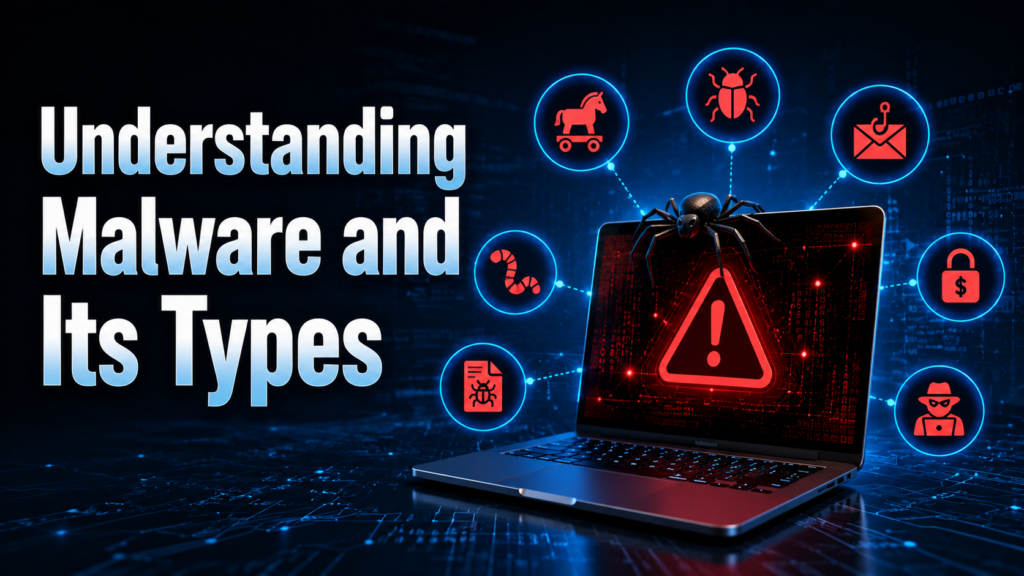
Before using MBAM software, it helps to understand what malware actually is and how it affects computers. Malware comes in many different forms, each with a unique method of attack.
What is Malware?
Malware is a general term used for any software designed to harm, exploit, or gain unauthorized access to a computer system. It can steal personal information, damage files, or slow down device performance. MBAM software is specifically built to detect and remove these harmful programs.
Types of Malware
Below is a table showing common types of malware and their basic characteristics.
| Malware Type | Description |
| Virus | Attaches itself to files and spreads when the file is executed |
| Trojan | Disguises itself as legitimate software to trick users |
| Worm | Spreads automatically across networks without user action |
| Spyware | Secretly monitors user activity and steals data |
| Ransomware | Locks files and demands payment for access |
| Adware | Displays unwanted advertisements and can track browsing habits |
How Malware Infects Computers
Malware often spreads through infected email attachments, unsafe downloads, or compromised websites. Sometimes it hides inside pirated software or fake system updates. Once installed, it can operate silently in the background, making detection tools like MBAM software essential.
Signs Your Computer is Infected
Common signs of infection include slow performance, unexpected pop-up ads, unfamiliar programs running in the background, and frequent browser redirects. If any of these symptoms appear, running a scan with MBAM software is a recommended first step to identify the problem.
Key Features of MBAM Software
MBAM software comes packed with features designed to protect users from a wide range of digital threats. These features work together to provide layered protection for the device.
Real-Time Protection
Real-time protection continuously monitors the system for suspicious activity as it happens. This feature helps stop malware before it can fully install itself. It works silently in the background without interrupting regular computer use.
Malware Scanning and Detection
The scanning engine in MBAM software checks files, folders, and system memory for known and suspicious patterns. It uses a combination of signature databases and heuristic analysis. This dual approach improves the chances of catching hidden threats.
Ransomware Protection
This feature specifically monitors for behavior associated with ransomware attacks, such as unauthorized file encryption attempts. It blocks such activity before files can be locked. This protects important personal and business documents from being held hostage.
Web Protection
Web protection blocks access to malicious websites and prevents phishing attempts. It works directly with the browser to warn users before they visit unsafe pages. This reduces the risk of accidentally downloading malware from compromised sites.
Exploit Protection
Exploit protection defends against attacks that take advantage of software vulnerabilities. It monitors commonly targeted applications like browsers and office programs. This adds an extra layer of defense against zero-day attacks.
Scheduled Scans
Users can set up automatic scans to run at specific times without manual intervention. This ensures the system is regularly checked even if the user forgets to run a scan manually. It helps maintain consistent protection over time.
Quarantine Feature
When a threat is detected, MBAM software moves it to a secure quarantine area instead of deleting it immediately. This allows users to review detected items before permanent removal. It also prevents accidental loss of legitimate files that may be flagged incorrectly.
System Requirements for MBAM
Before installing MBAM software, it is important to check whether your device meets the minimum requirements. This ensures smooth performance without unnecessary slowdowns.
Supported Operating Systems
MBAM software supports Windows, macOS, Android, and Chrome OS devices. Each version is tailored to the specific operating system it runs on. This wide compatibility makes it accessible to a large range of users.
Minimum Hardware Requirements
Generally, MBAM software requires at least 2GB of RAM and a small amount of free disk space, usually under 500MB. A modern processor is recommended for smoother scanning performance. Older devices may experience slightly slower scan times.
Compatibility with Other Antivirus Software
MBAM software is generally designed to run alongside most antivirus programs without conflict. However, running multiple real-time protection tools simultaneously can sometimes cause performance issues. It is often recommended to use MBAM software as a secondary scanning tool.
How to Download and Install MBAM
Installing MBAM software is a straightforward process that takes only a few minutes. Following the correct steps ensures the software is set up safely and correctly.
Official Download Source
It is important to always download MBAM software directly from the official Malwarebytes website. Downloading from third-party sites increases the risk of getting a fake or infected installer. Always verify the website URL before downloading.
Step-by-Step Installation Guide
The installation process generally follows these steps.
- Visit the official Malwarebytes website and select the download option.
- Run the downloaded installer file.
- Follow the on-screen setup instructions and accept the license agreement.
- Choose free or premium version during setup.
- Complete the installation and launch the program.
Free vs Premium Version Installation
During installation, users are given the option to start a free trial of the premium version or continue with the free version. The free version requires manual scans, while the premium version includes real-time protection. Users can decide based on their protection needs.
Common Installation Errors and Fixes
Some users may encounter errors such as installation freezing or compatibility warnings. These issues can often be resolved by disabling conflicting antivirus software temporarily during installation. Restarting the computer before reinstalling also helps in most cases.
MBAM User Interface Overview
The user interface of MBAM software is designed to be simple and beginner-friendly. Even users with little technical knowledge can navigate it easily.
Dashboard Explanation
The dashboard displays the current protection status, last scan date, and quick access buttons for scanning. It gives users an overview of their device’s security at a glance. This makes it easy to check protection status without digging through menus.
Menu and Settings Overview
The settings menu allows users to customize scan schedules, notification preferences, and exclusion lists. These options help tailor MBAM software according to personal usage habits. Advanced settings are also available for experienced users.
Navigating Scan Options
Users can choose between quick, full, and custom scans from the main menu. Each option is clearly labeled with an estimated time for completion. This helps users pick the right scan type based on available time.
Understanding Notifications and Alerts
MBAM software sends notifications when threats are detected or when updates are available. These alerts are designed to be clear and non-intrusive. Users can adjust notification settings if they prefer fewer interruptions.
How to Use MBAM Effectively
Simply installing MBAM software is not enough; using it correctly ensures maximum protection. This section covers the most important usage practices.
Running a Quick Scan
A quick scan checks the most commonly infected areas of the system, such as running processes and startup files. It usually takes only a few minutes to complete. This scan type is ideal for routine daily checks.
Running a Full System Scan
A full scan examines every file and folder on the device, offering the most thorough level of protection. It takes longer to complete compared to a quick scan. This scan is recommended at least once a week for complete peace of mind.
Running a Custom Scan
Custom scans allow users to select specific drives or folders to check. This is useful when a particular area of the system is suspected to be infected. It also saves time by skipping unnecessary files.
Scheduling Automatic Scans
Users can set up scans to run automatically at chosen intervals. This ensures the system stays protected even without manual effort. Scheduled scans are especially useful for users who often forget to run manual checks.
Updating Malware Definitions
Keeping malware definitions updated is crucial for MBAM software to detect the latest threats. Updates are usually downloaded automatically, but manual checks can also be performed. Regular updates significantly improve detection accuracy.
MBAM Free vs Premium Version
MBAM software is available in both free and paid versions, each offering different levels of protection. Understanding the differences helps users choose the right option for their needs.
Features Comparison Table
| Feature | Free Version | Premium Version |
| Manual Scanning | Yes | Yes |
| Real-Time Protection | No | Yes |
| Ransomware Protection | No | Yes |
| Web Protection | No | Yes |
| Scheduled Scans | No | Yes |
Pricing and Subscription Plans
The premium version of MBAM software is typically offered through monthly or yearly subscription plans. Pricing may vary depending on the number of devices covered. Discounts are often available for longer subscription commitments.
Which Version is Right for You?
The free version is suitable for users who only need occasional manual scans. The premium version is better suited for users who want continuous, real-time protection. Choosing between them depends on individual security needs and budget.
Troubleshooting Common MBAM Issues
Like any software, MBAM software can occasionally run into technical issues. Knowing how to resolve these problems saves time and frustration.
MBAM Not Opening or Crashing
This issue is often caused by corrupted installation files or conflicting software. Reinstalling the program usually resolves the problem. Restarting the computer before reinstalling can also help.
Scan Stuck or Frozen
A scan may appear stuck if the system is processing a very large number of files. Waiting a bit longer often resolves the issue naturally. If the problem persists, restarting the scan is recommended.
False Positive Detections
Sometimes legitimate files may be incorrectly flagged as threats. Users can review quarantined items and restore files they trust. Reporting false positives to Malwarebytes also helps improve future detection accuracy.
Update Errors
Update errors are often caused by internet connectivity issues or firewall restrictions. Checking the internet connection and temporarily disabling firewall restrictions usually fixes the issue. Manual update attempts can also be tried.
Uninstallation Issues
If MBAM software does not uninstall properly through normal methods, using the official removal tool provided by Malwarebytes is recommended. This ensures all files and registry entries are completely removed. A clean uninstall prevents future installation conflicts.
MBAM vs Other Antivirus Software
Comparing MBAM software with other popular antivirus solutions helps highlight its strengths and limitations. This comparison assists users in making informed security decisions.
MBAM vs Windows Defender
Windows Defender provides basic built-in protection, while MBAM software offers more advanced malware-specific detection. Many users combine both for layered security. MBAM software is often used to catch threats Defender may miss.
MBAM vs Norton
Norton offers a complete antivirus suite with additional features like VPN and identity protection. MBAM software focuses more narrowly on malware removal rather than an all-in-one package. Users often use MBAM software alongside Norton for extra protection.
MBAM vs McAfee
McAfee provides broad security features including firewall and parental controls. MBAM software specializes specifically in detecting hidden malware and ransomware behavior. Many users see MBAM software as a strong secondary layer rather than a full replacement.
Pros and Cons of MBAM
Below is a simple table listing the advantages and disadvantages of MBAM software.
| Pros | Cons |
| Strong malware detection | Limited firewall features |
| Lightweight and fast | Premium features require subscription |
| Easy to use interface | Not a complete antivirus replacement |
| Effective ransomware protection | Occasional false positives |
Tips for Maximizing Computer Security with MBAM
Using MBAM software alongside good security habits significantly improves overall protection. This section shares practical tips for better results.
Combining MBAM with Firewall
Using a firewall alongside MBAM software adds an extra layer of network security. The firewall blocks unauthorized access while MBAM software handles malware detection. Together, they provide more complete protection.
Safe Browsing Habits
Avoiding suspicious links and unofficial downloads reduces the risk of infection significantly. MBAM software works best when combined with cautious online behavior. Simple awareness can prevent many common threats.
Regular Backup Practices
Keeping regular backups of important files protects against data loss from ransomware attacks. Even with MBAM software installed, backups add an extra safety net. Cloud storage or external drives are good backup options.
Keeping Software Updated
Outdated software often contains vulnerabilities that malware can exploit. Keeping both MBAM software and other applications updated reduces security risks. Regular updates should become a routine habit for all users.
Frequently Asked Questions
Is MBAM Safe to Use?
Yes, MBAM software is safe and widely trusted by millions of users for malware detection and removal.
Can MBAM Replace Antivirus Software?
MBAM software works best as a supplement to antivirus programs rather than a complete replacement.
Does MBAM Slow Down the Computer?
MBAM software is generally lightweight and does not significantly slow down most modern computers.
How Often Should I Scan My PC?
Running a full scan weekly and quick scans regularly is recommended for consistent protection.
Conclusion
MBAM software remains a reliable choice for detecting and removing malware that traditional antivirus tools may overlook. Its combination of real-time protection, ransomware defense, and web security makes it a valuable addition to any device’s security setup. By understanding its features and following proper usage practices, users can significantly improve their overall digital safety.
Related Articles
What Is the Easiest 3D Modeling Software for Beginners in 2026?
Bus Management Software: Features, Benefits, Types, Working Process, and Complete Guide
How to Actually Create Software: Step-by-Step Beginner to Advanced Guide
Develop Oxzep7 Software: A Complete Beginner-Friendly Guide
RFP 2025 Software: Complete Guide to Choosing the Best Proposal Tool


