
Redragon EISA Magnetic Keyboard K686 Software: Complete Setup and Feature Guide
July 28, 2026
Custom Manufacturing Software: A Complete Guide for Modern Manufacturers
July 28, 2026
Seisa mouse software is the official driver and configuration tool made for Seisa gaming and office mice, allowing users to adjust sensitivity, program buttons, and control lighting effects directly from a simple desktop interface.
Many people who buy a Seisa gaming mouse do not realize that the real value of the device only shows up once the software is installed, because that is where the actual customization happens. This guide walks through everything a new or existing Seisa mouse owner needs to know, starting from what the software actually does, all the way to installation, features, gaming setup, office setup, troubleshooting, and safe removal.
The goal is to make this as simple as possible so that even someone who has never installed a driver before can follow along without getting confused. By the end of this article, anyone using a Seisa device will be able to unlock its full potential using the official Seisa mouse software.
What Is Seisa Mouse Software?
Seisa mouse software is a small desktop application built specifically to unlock the extra features hidden inside compatible Seisa mice, such as adjustable DPI and programmable buttons. Without it, the mouse still works, but only as a basic pointing device.
Purpose of the Software
The main purpose of Seisa mouse software is to give the user direct control over hardware settings that are normally fixed. Instead of being stuck with one sensitivity level or one lighting pattern, the user gets a visual dashboard to change these settings freely. This makes the mouse far more flexible for different tasks and different people sharing the same device.
Compatible Seisa Mouse Models
Not every Seisa mouse requires this software, since some basic office models are plug-and-play only. Models from the gaming and advanced wireless range, such as the DN-N818 and similar DN series mice, are built with extra chips that store custom profiles. These are the models that genuinely benefit from installing the dedicated software.
Plug-and-Play vs Software-Configurable Mice
A plug-and-play mouse works instantly without any installation, but it offers no way to change DPI stages, remap buttons, or adjust lighting. A software-configurable mouse, on the other hand, needs the driver installed first before any of its advanced features become available. Understanding this difference helps buyers set the right expectations before they even open the box.
System Requirements for Seisa Mouse Software
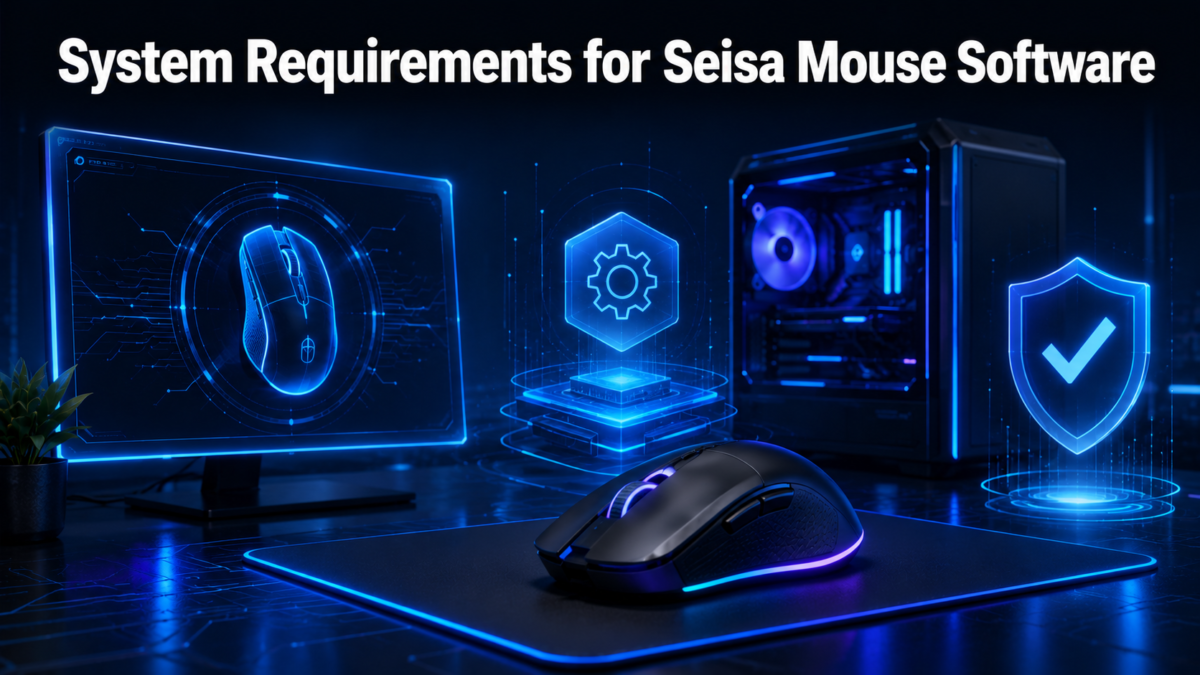
Before installing anything, it is worth checking whether the current computer setup can actually run the Seisa mouse software properly. Most modern Windows machines meet these requirements without any extra effort.
Supported Operating Systems
Seisa mouse software is primarily built for Windows operating systems, covering the versions most commonly used in home and office computers today. Mac compatibility is limited and usually restricted to basic optical functions without full software access. Anyone using Linux should not expect official support, since the brand does not currently maintain drivers for that platform.
Minimum Hardware Requirements
The software itself is lightweight and does not demand a powerful machine, so almost any computer built in the last decade should handle it comfortably. What matters more is having a free USB port and updated system drivers, since outdated ports or drivers are usually the real cause of installation problems. A stable internet connection is also needed only during the download step.
Connectivity Requirements
Wired Seisa mice simply need a working USB port, while wireless models depend on a small nano receiver that must stay plugged in at all times for the software to detect the device. If the receiver is removed or blocked by a USB hub, the software may fail to recognize the mouse even though the drivers are installed correctly.
Where to Download Seisa Mouse Software
The safest and most reliable place to get Seisa mouse software is directly from the official Seisatek website, since this avoids fake installers bundled with unwanted programs. Downloading from unofficial sources can expose the computer to unnecessary risk.
Official Download Source
The official drivers section on the Seisatek website lists software organized by mouse model, which makes it easy to find the exact file needed. Visiting this page directly, rather than searching randomly, saves time and avoids confusion between similar-looking product names.
Verifying the Correct File
Every mouse model has its own specific version of the software, so installing the wrong one can lead to missing features or the device not being detected at all. Checking the exact model number printed on the bottom of the mouse before downloading prevents this mismatch. Matching the file name to the model number is the quickest way to confirm accuracy.
Avoiding Unofficial Sources
Third-party download sites sometimes repackage drivers with extra toolbars or unwanted background programs that slow down the computer. Sticking to the official source, or well-known retailer support pages, keeps the installation clean and free from hidden software.
Step-by-Step Installation Guide
Installing Seisa mouse software is a short process that most users can complete in a few minutes without any technical background. The steps below cover everything from download to confirmation.
Downloading and Running the Installer
Once the correct file is downloaded, it should be run as an administrator to avoid permission errors during setup. The installation wizard then guides the user through each screen, and simply following the on-screen prompts is enough for a standard setup.
Granting Permissions and Restarting
Some systems require explicit permission before a new driver can be installed, so a confirmation prompt may appear during the process. After installation completes, restarting the computer ensures that the driver loads properly into the system rather than running in a partial state.
Confirming Successful Installation
After restarting, plugging in the mouse and opening the software should immediately show the connected device on the dashboard. If the software opens but shows no device, unplugging and reconnecting the mouse usually resolves the issue without needing to reinstall anything.
Getting Started With the Software Interface
Once installed, the interface of Seisa mouse software is designed to be simple enough for beginners while still offering enough depth for advanced users. The layout is usually divided into a few clear sections.
First Launch and Device Detection
On the first launch, the software automatically scans for a connected Seisa device and displays it with an image or label matching the model. This detection step confirms that the drivers were installed correctly and that the mouse is ready for customization.
Understanding the Dashboard Layout
The dashboard is typically split into tabs for DPI, buttons, lighting, and profiles, each represented with clear labels rather than confusing icons. This layout allows users to jump directly to the setting they want to change instead of digging through menus.
Key Features of Seisa Mouse Software
The real strength of Seisa mouse software lies in the range of features packed into one simple application. Each feature is explained individually below for clarity.
DPI Adjustment
DPI, or dots per inch, controls how fast the cursor moves in relation to physical hand movement, and higher DPI means faster cursor speed.
The software allows users to set multiple DPI stages and switch between them instantly using a dedicated button on the mouse. This is especially useful for tasks that need both fast movement and precise control at different moments.
Button Programming
Extra buttons on the mouse can be assigned to specific actions, shortcuts, or even full macros through the software interface.
This means repetitive tasks, whether in games or daily work, can be triggered with a single click instead of multiple keystrokes. Custom profiles can also be created so different button setups apply to different applications.
RGB Lighting Customization
For models with RGB lighting, the software offers control over colors and effects such as static, breathing, or wave patterns.
Users can match the lighting to their setup or simply turn it off entirely to save power on wireless models. This feature is purely cosmetic but adds a personal touch to the overall gaming setup.
Polling Rate Settings
Polling rate determines how often the mouse reports its position to the computer, measured in times per second. A higher polling rate generally results in smoother and more responsive cursor movement, which matters most in fast-paced gaming scenarios. The software allows this rate to be adjusted based on the user’s specific needs.
Profile Management
Multiple profiles can be saved within the software, each storing its own DPI, button, and lighting configuration. This is particularly useful for shared computers or users who switch between gaming and office tasks throughout the day. Switching profiles takes only a click, without needing to reconfigure every setting from scratch.
Customizing the Mouse for Gaming
Gamers get the most noticeable benefit from Seisa mouse software, since competitive titles often require quick sensitivity changes. Below is a simple reference table for common game types.
| Game Type | Recommended DPI Range | Reasoning |
| FPS (Shooters) | 400–800 DPI | Lower DPI improves aiming precision |
| MOBA | 800–1600 DPI | Balanced speed for map navigation and clicks |
| RTS | 1600–2400 DPI | Faster cursor movement across large maps |
Setting up macros for frequently used commands can also give a slight edge in competitive matches, especially in games with complex key combinations. Additionally, syncing the mouse lighting with other RGB peripherals creates a more consistent visual setup, though this has no effect on actual performance.
Customizing the Mouse for Office and Productivity Use
Office use has very different requirements compared to gaming, and the software adjusts easily to suit this. Lower DPI settings are generally preferred for tasks like document editing or design work, since they allow more precise cursor placement.
Button functions can also be simplified to avoid accidentally triggering gaming-style macros during regular work. For wireless models, reducing or disabling RGB lighting through the software helps extend battery life significantly during long work sessions.
Troubleshooting Common Issues
Even with a straightforward installation process, occasional issues can still appear, and most have simple fixes.
Software Not Detecting the Mouse
This usually happens when the USB connection is loose or when the receiver is plugged into an inactive port. Reconnecting the device to a different USB port often resolves the detection issue immediately.
Driver Installation Failures
Installation failures are frequently caused by outdated system components or insufficient permissions during setup. Running the installer as an administrator and ensuring the operating system is updated usually clears this problem.
Settings Not Saving Properly
If custom settings disappear after restarting the computer, it may indicate a background conflict with another mouse driver running simultaneously. Closing other peripheral software before making changes typically prevents this from happening again.
Wireless Connectivity Issues
Lag or disconnection in wireless models is often linked to signal interference from other wireless devices nearby. Moving the receiver closer to the mouse or switching to a different USB port can noticeably improve stability.
Updating Seisa Mouse Software
Keeping the software updated ensures compatibility with newer operating system versions and fixes any bugs from earlier releases.
Checking the official website periodically for a newer version is a simple habit that prevents most long-term issues. Before updating, it is a good practice to note down current profile settings, since some updates may reset saved configurations.
Uninstalling Seisa Mouse Software
If the software is no longer needed, it can be removed safely through the standard uninstall option in the system settings. After uninstalling, checking for any leftover files or registry entries and removing them manually helps keep the system clean for future reinstallation if needed.
Seisa Mouse Software Compared to Other Brands
Compared to larger gaming peripheral brands, Seisa mouse software focuses on simplicity rather than heavy customization depth, making it more approachable for casual users.
Bigger competitors often include advanced macro scripting and cloud profile syncing, which Seisa currently does not offer. However, for everyday gaming and office use, the lighter and more direct interface of Seisa mouse software can actually feel less overwhelming for beginners.
Frequently Asked Questions
Is Seisa mouse software free?
Yes, the software is provided free of charge on the official Seisatek website for all compatible mouse models.
Does it work with non-Seisa mice?
No, the software is built specifically for Seisa devices and will not detect mice from other brands.
Can I use the mouse without installing the software?
Yes, basic pointing functions work without it, but advanced features like DPI switching and button programming will remain locked.
Is it safe to download?
Yes, as long as it is downloaded directly from the official website rather than third-party file-sharing sites.
Conclusion
Seisa mouse software turns a standard gaming or office mouse into a fully customizable tool, offering control over DPI, buttons, lighting, and polling rate through one simple interface. Following the official download and installation steps outlined in this guide ensures a smooth setup without unnecessary risk.
Whether the mouse is used for competitive gaming or daily office work, taking a few minutes to configure it properly through the software makes a noticeable difference in overall comfort and performance.
Related Articles
Software Technolotal: The Complete Guide to Understanding Software Technology
Software Teamcenter: A Complete Guide to Product Lifecycle Management
Software Gfxpixelment: A Complete Guide to Pixel-Level Design Software
FORScan Software: A Complete Beginner-Friendly Guide
Details of GDTJ45 Builder Software: Is It Real or Just Online Hype?


