

Software for Consultancy
July 30, 2026
Audials Music 2024: Complete Guide to the Music Streaming Capture Software
July 31, 2026
Introduction
Many people buy a laser machine but forget that software plays an equally important role in the final result. A powerful machine paired with weak or unsuitable software often produces blurry, uneven, or incomplete engravings.
On the other hand, a mid-range machine paired with the right laser engraver software can produce clean, professional-looking work. This section introduces why software matters and who typically relies on it daily.
Laser engraver software is used by a wide variety of people, not just large manufacturing companies. Hobbyists use it at home to personalize gifts, small business owners use it to create products for sale, and industrial operators use it for large-scale production lines.
Understanding your own use case early helps you pick software that matches your skill level and project needs, rather than something overly complicated or too limited for your goals.
How Laser Engraving Software Works
Before comparing different tools, it helps to understand the basic process. Laser engraver software does not work alone; it communicates directly with machine firmware to translate your design into physical movement. Once you understand this flow, choosing and troubleshooting software becomes much easier.
The Basic Workflow
The general process starts when you create or import a design into the software, such as a logo, text, or photo. The software then converts this design into a language the laser machine understands, adjusting settings like power, speed, and path direction.
Finally, the machine executes these instructions physically, engraving or cutting the material exactly as shown on screen.
Understanding G-code and Machine Commands
G-code is a common language used by many laser machines to understand movement, speed, and power instructions. Each line of G-code tells the machine where to move next, how fast to move, and how much laser power to apply at that point.
Most modern laser engraver software automatically generates this code in the background, so users rarely need to write it manually.
Vector vs Raster Images Explained
Vector images are made of paths and lines, which makes them ideal for clean cutting and engraving edges without losing quality. Raster images are made of pixels, commonly used for detailed photo engravings but requiring more processing time. Good laser engraver software supports both formats, allowing flexibility depending on whether you need sharp lines or photographic detail.
Role of Firmware in Laser Machines
Firmware acts as the machine’s operating system, interpreting commands sent by the software and controlling the laser head, motors, and power output.
Common firmware types include GRBL, Ruida, and Trocen, each compatible with different machine brands and software programs. Choosing software that matches your machine’s firmware is essential, otherwise the two systems may fail to communicate properly.
Types of Laser Engraver Software
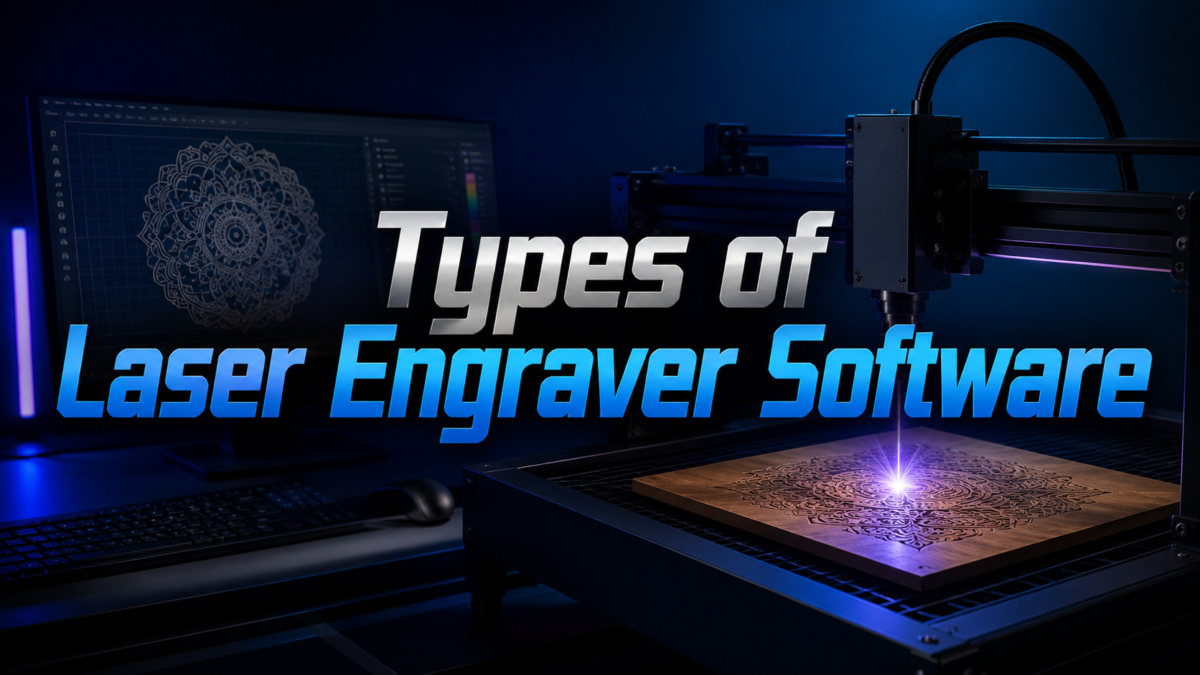
Software options generally fall into free and paid categories, each with different strengths depending on your budget and project complexity. Some tools are built specifically for laser work, while others are general design programs adapted for laser use.
Free and Open-Source Options
Free software like LaserGRBL and LaserWeb is popular among beginners who are just starting with basic diode laser machines.
These tools offer essential engraving controls without any upfront cost, though they may lack advanced automation features. Inkscape, paired with laser-specific plugins, is another common free choice for users who also need strong design capabilities.
Paid and Commercial Software
Commercial software such as LightBurn is widely regarded as one of the most reliable options due to its broad machine compatibility and user-friendly interface. RDWorks and
EZCAD are typically bundled with specific machine brands, especially those using Ruida or fiber laser controllers. Paid options usually offer better customer support, frequent updates, and smoother performance for larger or more detailed projects.
Design Software Often Paired with Lasers
Programs like Adobe Illustrator and CorelDRAW are frequently used to prepare artwork before importing it into dedicated laser engraver software.
Fusion 360 is popular among users creating three-dimensional or mechanical designs that require precision modeling before engraving. While these programs are not laser-specific, they significantly improve design quality when combined with proper laser control software.
Key Features to Look For
Choosing laser engraver software becomes much easier once you know which features actually matter for daily use. The following table highlights common features and why each one is important for consistent results.
| Feature | Why It Matters |
| Machine Compatibility | Ensures software works correctly with your specific laser type and controller |
| Design Tools | Allows text, shapes, and image editing directly inside the software |
| Power and Speed Control | Lets you fine-tune settings based on material type and thickness |
| Camera Alignment | Helps position designs accurately using a built-in camera preview |
| Material Test Grids | Provides settings templates to avoid repeated trial and error |
| File Format Support | Determines which design files you can import without conversion issues |
Understanding these features before purchasing or downloading software prevents future frustration, especially when working with different materials like wood, acrylic, or metal that each require unique settings.
Popular Software Reviewed
Several software options dominate the market today, each with its own strengths and limitations depending on user needs. Reviewing them individually helps clarify which one suits beginners versus experienced users.
LightBurn Overview
LightBurn is widely praised for its clean interface, strong community support, and compatibility with most diode, CO2, and fiber laser machines.
It includes built-in material test tools, camera alignment features, and regular software updates that improve reliability. The main downside is its one-time paid license, though many users consider the investment worthwhile for the time saved.
LaserGRBL Overview
LaserGRBL is a free tool mainly designed for GRBL-based diode laser engravers, making it a popular starting point for hobbyists. It handles basic raster and vector engraving well but lacks some advanced automation features found in paid alternatives. Despite its simplicity, it remains a dependable choice for small projects and learning purposes.
RDWorks Overview
RDWorks is typically included with machines using Ruida controllers, especially CO2 laser cutters used in small workshops. It offers solid cutting and engraving control but has a slightly outdated interface compared to newer software.
Many users pair RDWorks with additional design software to compensate for its limited built-in design tools.
EZCAD Overview
EZCAD is commonly used with fiber laser machines, particularly for marking metal surfaces with logos, serial numbers, or barcodes. It provides precise control over marking speed and depth, which is essential for industrial applications.
However, its interface can feel technical for complete beginners without prior laser experience.
Choosing the Right Software for Your Machine
Selecting laser engraver software should always start with confirming compatibility with your machine’s firmware and controller type. Skipping this step often leads to connection failures or limited functionality, even if the software itself is high quality.
Matching Software to Controller Type
Different machines use different controllers, such as GRBL for diode lasers or Ruida for CO2 systems, and software must match accordingly.
Checking your machine’s manual or manufacturer website usually clarifies which controller type it uses. Using mismatched software often results in the machine not responding at all, wasting valuable setup time.
Budget and Skill Level Considerations
Beginners with tight budgets often start with free tools before upgrading to paid software as their skills and project demands grow.
Advanced users producing detailed or commercial work usually benefit more from paid software due to added precision and support. Considering both your current budget and expected project complexity helps avoid unnecessary switching later.
Step-by-Step Setup Guide
Setting up laser engraver software correctly the first time prevents many common beginner mistakes. This section walks through the essential setup stages in order.
Installing the Software
Download the software directly from the official website to avoid corrupted or outdated files from third-party sources. Follow the installation wizard carefully, ensuring any required drivers for your laser machine are also installed. Restarting your computer after installation often resolves minor connection issues before first use.
Connecting Your Laser Machine
Connect your machine using the recommended cable type, usually USB, and ensure the machine is powered on before opening the software.
Most laser engraver software automatically detects the machine, though manual port selection may sometimes be required. Always confirm a stable connection before attempting your first test engraving.
Running Your First Test Engraving
Start with a small, simple design on scrap material to test power and speed settings safely. Gradually increase complexity only after confirming the machine responds accurately to basic commands. This cautious approach prevents wasted materials and helps you understand your machine’s specific behavior early on.
Tips for Getting Better Results
Consistent, professional results depend heavily on how well you understand your software’s settings and limitations. Small adjustments often make a noticeable difference in final quality.
Adjusting Settings for Different Materials
Wood, acrylic, and metal each require different power and speed combinations to avoid burning or incomplete engraving. Keeping a personal settings log for each material saves significant time on future projects. Most laser engraver software allows saving custom presets for exactly this purpose.
Avoiding Common Mistakes
Rushing through setup or skipping test engravings often leads to uneven results or damaged materials. Regularly cleaning the laser lens and checking alignment also prevents avoidable quality issues. Patience during setup consistently produces better long-term results than rushing straight into full-size projects.
Common Problems and Troubleshooting
Even reliable software occasionally runs into issues, usually related to connections, imports, or minor bugs. Understanding common problems helps you resolve them quickly without unnecessary frustration.
Connection and Import Issues
Connection problems often stem from incorrect port selection, faulty cables, or outdated drivers needing reinstallation. Import issues usually occur when file formats are unsupported, requiring conversion before uploading. Restarting both the software and machine frequently resolves temporary connection glitches.
Future Trends in Laser Engraving Software
Laser engraver software continues evolving, with newer versions increasingly incorporating smart automation and cloud-based accessibility.
Artificial intelligence features are beginning to assist with automatic material recognition and settings suggestions, reducing manual guesswork for beginners. Cloud-based platforms are also emerging, allowing users to manage designs and machine settings from multiple devices without local installation limits.
Competitor Content Analysis
Most existing articles on this topic either focus heavily on listing software names without explaining the underlying workflow, or they overwhelm readers with overly technical jargon aimed at experienced engineers.
Few resources clearly connect firmware, controller types, and software choice together in simple language for beginners. This guide addresses that gap by combining practical explanations with structured comparisons, making it easier for both new and experienced users to make informed decisions.
Conclusion
Laser engraver software plays a central role in determining engraving quality, regardless of how advanced your physical machine may be.
Understanding firmware compatibility, essential features, and proper setup steps helps beginners avoid common early mistakes. As you gain experience, exploring advanced settings and premium software options can further improve precision and project variety.
Frequently Asked Questions
Is laser engraver software difficult to learn for beginners?
Most beginner-friendly options are designed with simple interfaces, making basic engraving achievable within a short learning period.
Can I use free laser engraver software for commercial projects?
Yes, many businesses start with free software before upgrading to paid tools as their production needs grow.
Does laser engraver software work with any laser machine?
No, compatibility depends on matching software with your machine’s specific firmware and controller type.
What file formats are commonly supported?
Most software supports common formats like SVG, DXF, BMP, and AI files for flexible design importing.
Related Articles
Software CODESYS : A Complete Guide to Industrial Automation Programming
Export List of Software Installed : on Your Computer (Complete Guide)
Entry Level Software Engineering Jobs: A Complete Guide for Beginners


