

Archibus Software: A Complete Guide to Features, Benefits and Uses
September 1, 2026
Software CC? A Complete Guide to Configuration Control
September 2, 2026
The aula win60 he software is not a traditional program that you install on your computer like most keyboard tools. Instead, it works as a browser-based driver that opens directly through Chrome, Edge, or Opera. This approach lets you configure your keyboard without downloading anything extra onto your system.
Once your keyboard is connected, the driver loads automatically and gives you access to every customization option the WIN60 HE offers. This guide walks you through the entire process in a simple, detailed, and beginner-friendly way.
What Is the AULA WIN60 HE Keyboard?
The AULA WIN60 HE is a compact mechanical keyboard built around Hall Effect magnetic switch technology. This design allows for extremely precise key detection and fast response times, which is why the accompanying driver plays such an important role in unlocking its full potential.
Understanding Hall Effect Switches
Hall Effect switches use magnets instead of physical metal contacts to register a keypress. As the key moves down, a sensor detects the changing magnetic field and translates it into an input signal.
This method reduces wear over time and allows for adjustable actuation points, something standard mechanical switches cannot offer.
Why This Keyboard Needs Dedicated Software
Because the actuation distance and sensitivity can be changed on a Hall Effect keyboard, a configuration tool becomes necessary.
Without it, users would be stuck with default settings and unable to fine-tune how sensitive each key feels. The driver essentially unlocks the hardware’s full capability.
Understanding the AULA WIN60 HE Software
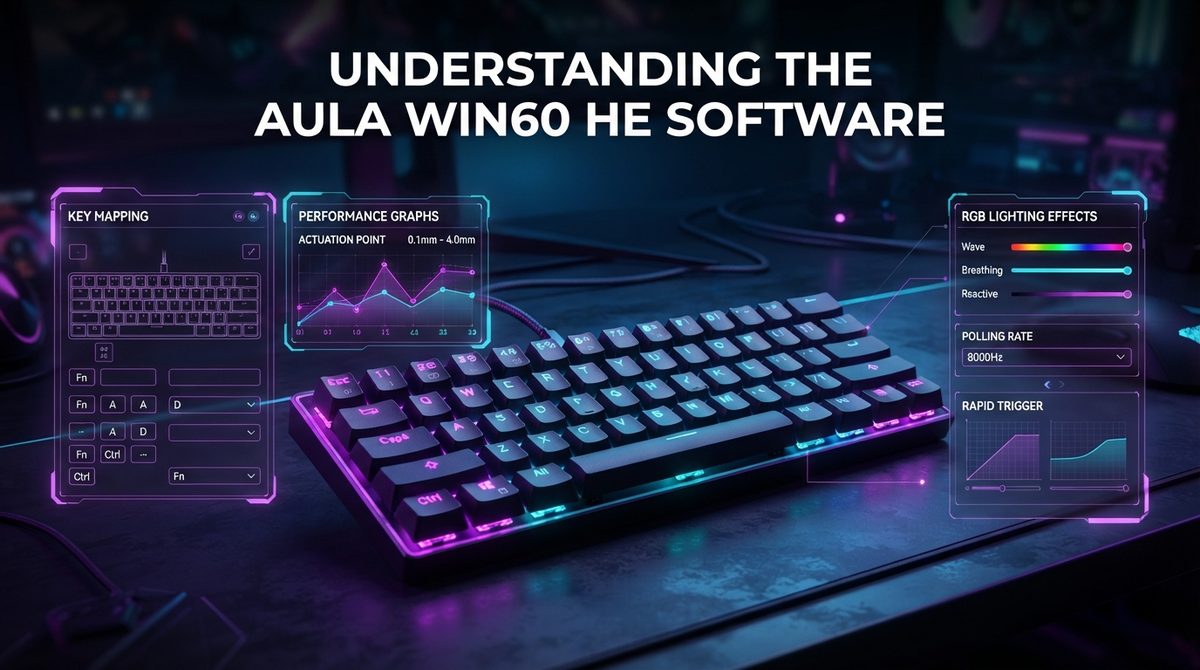
Many buyers expect a downloadable desktop application, similar to software bundled with other gaming peripherals. However, AULA has taken a different route with this particular keyboard, and understanding that difference early on prevents confusion during setup.
Why AULA Chose a Web-Based Driver
Instead of building a separate desktop program for every operating system, AULA created a single web driver that works across supported browsers. This reduces compatibility issues and means updates can be pushed instantly without requiring users to reinstall anything.
Supported Browsers for the Driver
The web driver is currently compatible with Chromium-based browsers, meaning Chrome, Edge, and Opera all work reliably. Other browsers may not support the required permissions, so sticking to one of these three is recommended for a smooth experience.
Supported Keyboard Models
The same driver platform supports several models within the AULA magnetic switch lineup, not just the WIN60 HE. This shared system makes it easier for the company to maintain consistent features across its product range.
| Model Name | Layout Type | Driver Compatibility |
| WIN60 HE | 60 Percent | Web Driver |
| WIN60 HE PRO | 60 Percent | Web Driver |
| WIN60 HE MAX | 60 Percent | Web Driver |
| WIN68 HE Ultra | 68 Key | Web Driver |
| HERO 68 HE Series | 68 Key | Web Driver |
How to Access the AULA Web Driver
Getting started with the aula win60he software requires a few straightforward steps. Since there is nothing to install, the process is faster than setting up traditional desktop peripheral software.
Visiting the Official Website
Start by opening a supported browser and navigating to the official AULA website. From the homepage, look for a downloads or support section, since this is where the driver access point is usually located.
Locating and Selecting the Driver
Once inside the downloads area, search for the WIN60 HE driver listing and choose the Standard Edition option. Selecting the correct edition matters because using the wrong version may prevent certain settings from displaying correctly.
Connecting Your Keyboard and Granting Access
Plug the keyboard into your computer using the included cable, then allow the browser to access the connected device when prompted. This permission step is required because web drivers rely on browser-level hardware access rather than a background system process.
Key Features of the Software
Once connected, the driver reveals a full dashboard of customization tools. These features are what make the WIN60 HE appealing to gamers and typists who want more control over their typing experience.
Key Remapping Options
Users can reassign almost any key on the board to perform a different function. This is useful for gamers who want quick access to specific commands or for anyone who prefers a layout different from the factory default.
Rapid Trigger and Actuation Settings
This is one of the most valuable features tied to Hall Effect technology. The software lets you adjust how far a key must travel before it registers, giving competitive gamers an edge in fast-paced situations.
RGB Lighting Customization
Lighting effects, colors, and brightness levels can all be adjusted directly through the driver interface. Several preset patterns are usually included, along with the option to build a fully custom lighting profile.
Macro Recording and Profiles
Advanced users can record multi-step macros and save them to specific keys. Multiple profiles can also be created, allowing quick switching between setups designed for gaming, writing, or general use.
Setting Up Rapid Trigger for Best Performance
Rapid trigger settings are often the main reason people seek out the aula win60he software in the first place. Getting these numbers right can noticeably improve how the keyboard feels during gameplay.
Recommended Actuation Point
A shorter actuation point, typically around the lower range offered by the software, tends to work well for fast-paced games where quick reflexes matter most. Typing-focused users may prefer a slightly longer point to avoid accidental presses.
Recommended Reset Point
The reset point determines how quickly a key becomes ready to register again after being released. Setting this too low can cause double inputs, while setting it too high may feel sluggish, so testing a middle ground is usually best.
Matching Settings to Your Use Case
Gamers who play shooters often benefit from tighter, faster settings, while those who spend more time typing documents may want a more relaxed configuration. The software allows saving different profiles so you never have to choose just one setting permanently.
Common Issues and How to Fix Them
Like any web-based tool, the driver can occasionally run into hiccups. Most problems have simple solutions once you know where to look.
Software or Website Not Loading
If the official page appears down, this is usually a temporary server issue rather than a problem with your keyboard. Waiting a short while or trying again later typically resolves this without needing any technical fix.
Browser Compatibility Problems
Using an unsupported browser is one of the most common causes of connection failures. Switching to Chrome, Edge, or Opera almost always solves detection issues immediately.
Keyboard Not Being Detected
If the driver does not recognize your keyboard, try unplugging and reconnecting the cable, testing a different USB port, or refreshing the browser page. In most cases, one of these simple steps restores the connection.
Settings Not Saving Properly
Occasionally, custom configurations may fail to save if the browser tab is closed too quickly. Always allow a few seconds after making changes before closing the driver page to ensure everything is stored correctly.
Tips for Getting the Most Out of the Software
Beyond basic setup, a few habits can help you maintain consistent performance over time.
Keep Firmware Updated
Checking for firmware updates periodically ensures compatibility with the latest driver improvements. Updated firmware often includes bug fixes and refined sensor accuracy.
Create Separate Profiles
Rather than adjusting settings every time you switch tasks, build dedicated profiles for gaming, typing, and general browsing. This saves time and keeps your preferred configurations easily accessible.
Note Down Your Preferred Settings
Since the driver is web-based, it can help to write down your favorite actuation and reset point numbers separately. This makes it easy to reapply your ideal setup if you ever need to reset the keyboard.
How This Compares to Other Keyboard Software
Many competing magnetic switch keyboards rely on downloadable desktop applications, which can require regular updates and sometimes clutter a system with background processes.
The web-driver approach used here trades a small amount of offline convenience for simpler cross-platform access and instant updates, though users without a stable internet connection may occasionally find this less convenient than an installed program.
Frequently Asked Questions
Does the WIN60 HE require software to work at all?
Basic typing functions work without any setup, but accessing rapid trigger adjustments, macros, and lighting controls requires opening the web driver at least once.
Is there a downloadable desktop version available?
No, this keyboard currently relies entirely on its browser-based driver rather than a standalone installed application.
Can the driver be used on Mac or Linux systems?
Since it runs through a supported browser rather than native software, it can generally be accessed on any operating system running Chrome, Edge, or Opera.
Is it safe to grant browser access to the keyboard?
Yes, this permission is only used to communicate configuration data between your browser and the connected device, which is standard for web-based driver systems.
Conclusion
The aula win60he software offers a flexible, browser-based way to unlock the full potential of this Hall Effect keyboard, from precise rapid trigger tuning to custom lighting and macros.
While the web-driver format differs from traditional installed programs, it simplifies cross-platform access and keeps the configuration process straightforward once you know where to look and how to troubleshoot common hiccups.
Related Articles
Software Engineer Remote: The Complete Career Guide
Axel Technology SocialHub Social Content Manager Software
Energy Decomposition Analysis Software: Complete Guide for Researchers
Top Marketing Attribution Software 2025 2026
Software Definitie: A Complete and Easy Guide to Understanding Software


